
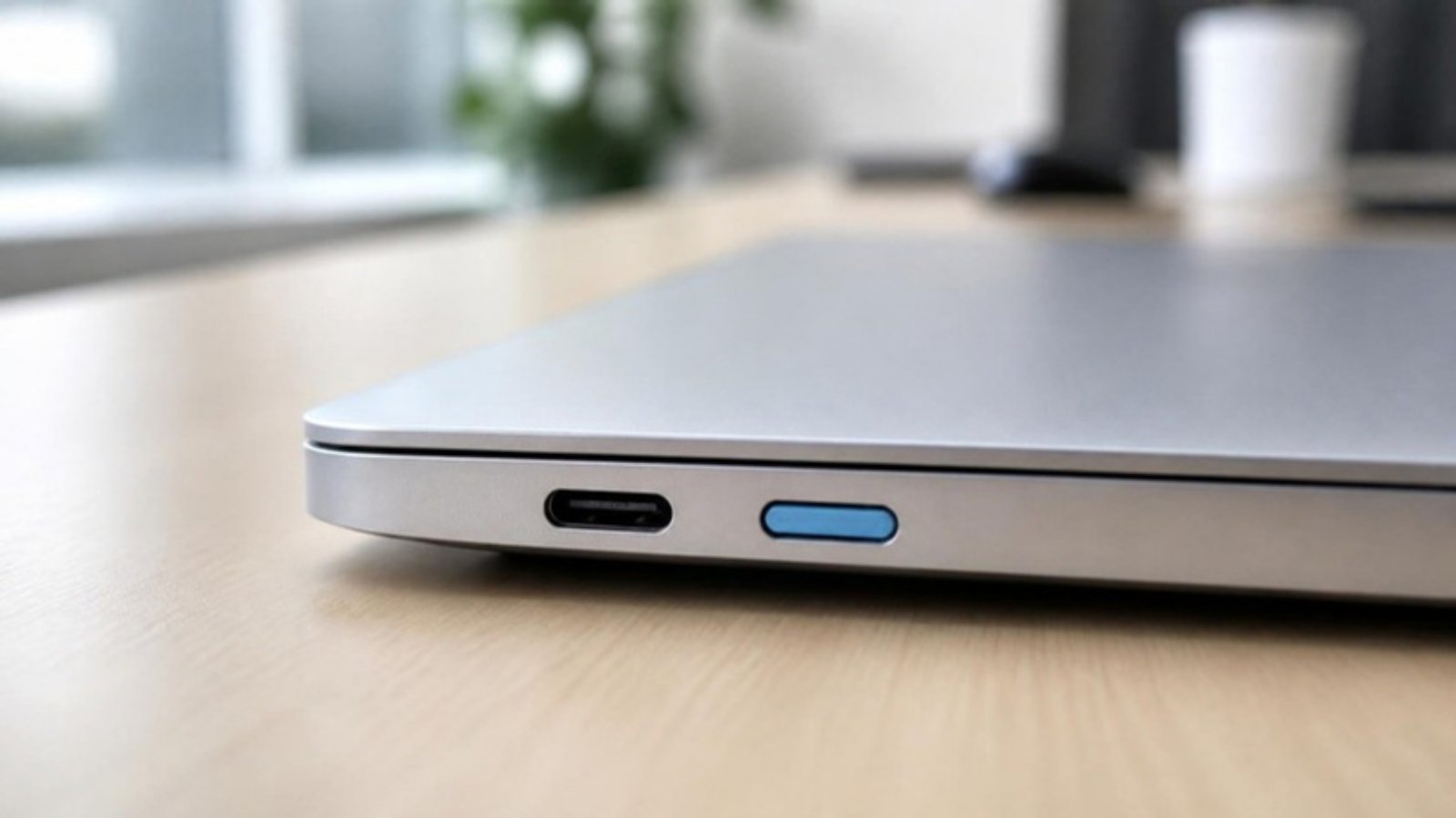
Every exposed USB port is a way in. Someone can copy files to a thumb drive, plug in an infected device, or connect something you never approved. Software policies help, but they can be misconfigured or bypassed. A USB port blocker is the simple physical fix: a small lock that clicks into the port and can only be removed with a matching key.
This guide explains how Lindy USB-A and USB-C port blockers work, which pack to choose, and how to roll them out across an office, school, clinic or factory.
What Is a USB Port Blocker?
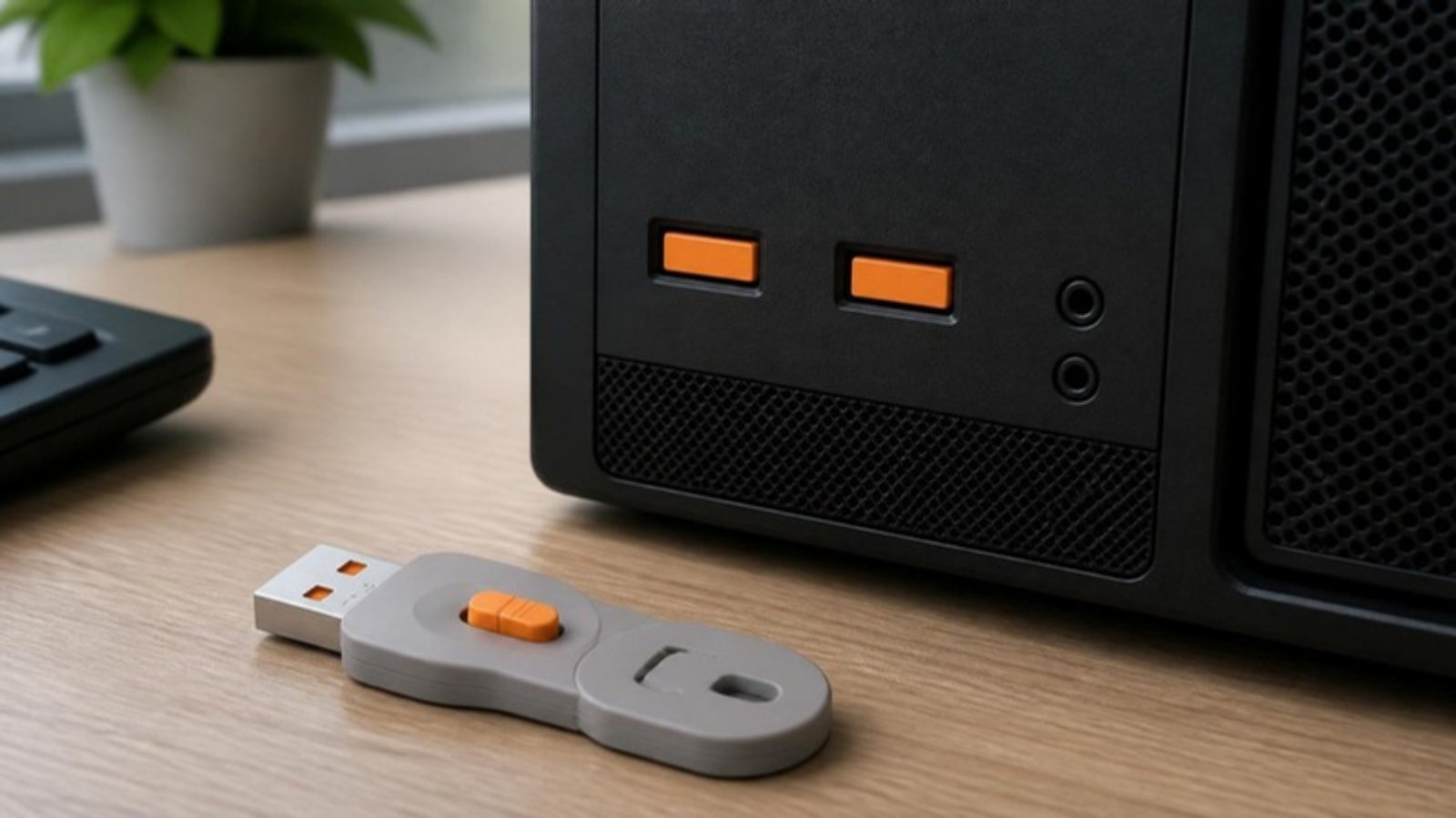
A port blocker is a plastic lock shaped to fit inside a USB port. Once pushed in, it latches and cannot be pulled out by hand. To remove it, you use a matching key that releases the latch. No software, drivers or tools are needed, and it works with any operating system.
- Stops data theft: no USB drive, phone or external disk can be connected.
- Reduces malware risk: blocks infected USB sticks and “found” drives from being plugged in.
- Visible deterrent: the bright colour shows at a glance that the port is controlled.
- Reversible: IT can unlock a port in seconds when it is genuinely needed.
USB-A or USB-C: Which Do You Need?
| USB-A port blocker | USB-C port blocker | |
|---|---|---|
| Port shape | Larger rectangular port | Small oval, reversible port |
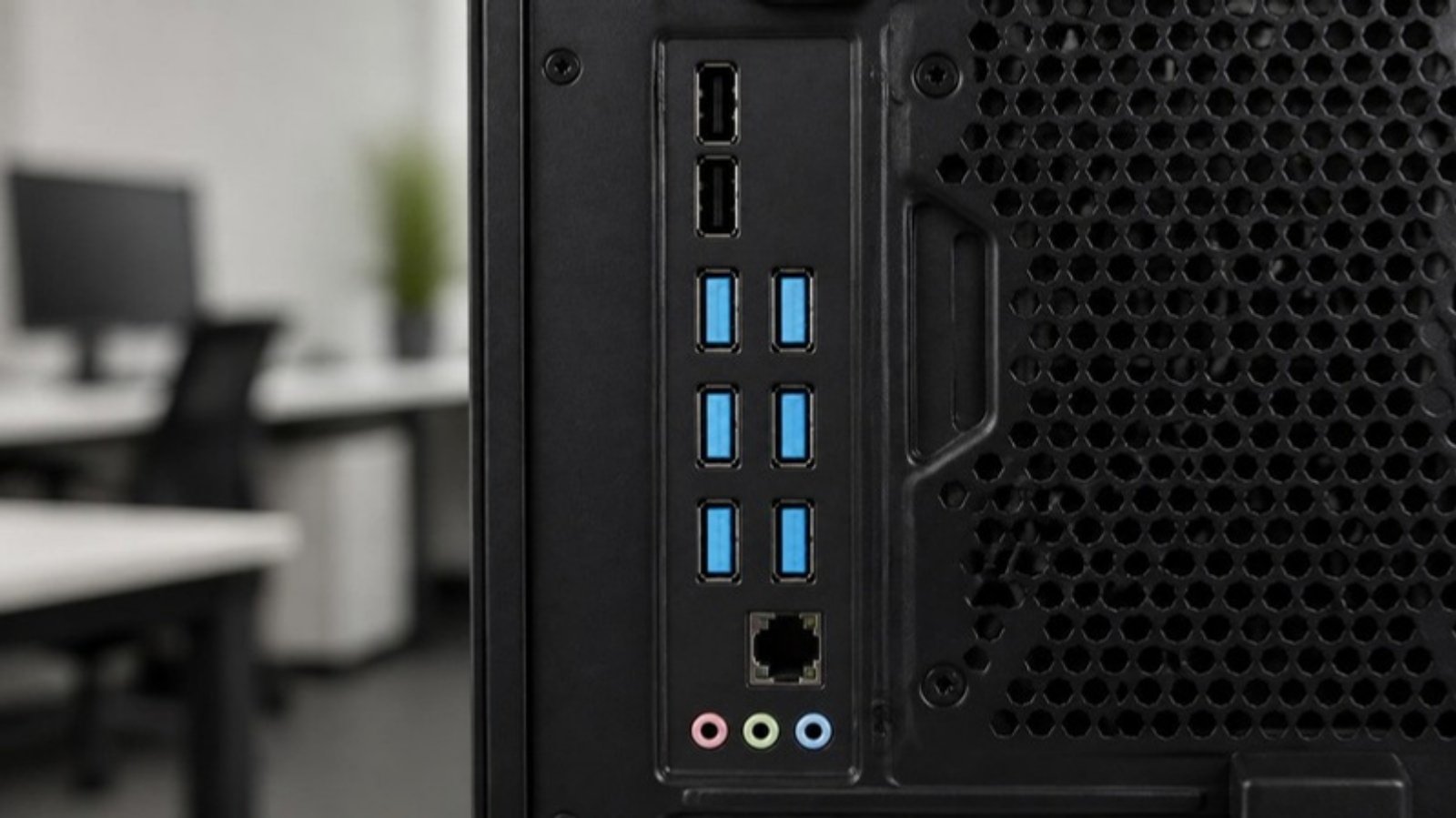
| Typical devices | Desktop PCs, thin clients, POS terminals, older laptops, monitors and docks | Modern laptops, ultrabooks, tablets, newer docks; also fits Thunderbolt 3/4 ports |
| Starter kit | Lindy USB-A Port Blocker, 4 Locks + 1 Key | Lindy USB-C Port Blocker, 4 Locks + 1 Key |
| Refill pack | Lindy USB-A Port Blockers 10-Pack | Lindy USB-C Extra Lock Pack, 10 Locks |
Many workplaces need both. A typical office desktop has USB-A ports on the front and back, while staff laptops increasingly have only USB-C.
How the Colour-Coded Keys Work
Lindy port blockers come in several colours, and each colour only opens with the key of the same colour. That lets you build simple access levels:
- Assign one colour per department, floor or site (for example, blue for finance, green for front desk).
- Give the matching key only to the IT staff responsible for that area.
- A key from another department cannot unlock your ports.
Important: the 10-lock refill packs contain locks only, no key. Buy a starter kit first (4 locks + 1 key) in the colour you want, then add refill packs in the same colour.
Which Pack Should You Buy?
- Small office or a few PCs: one starter kit per port type covers up to 4 ports and includes the key.
- Department-wide rollout: one starter kit (for the key) plus refill packs of the same colour until you have enough locks.
- Multiple departments: one starter kit per colour, so each team has its own key, then refill packs per colour.
- Need a custom quantity? We can put together packs with a specific number of locks and keys. Ask us for a quote.
Quick way to count: walk the floor and count exposed ports per device. Leave the ports you actually use for the keyboard, mouse or dock unlocked.
Where Port Blockers Make the Most Sense
- Reception and shared PCs: visitors and temporary staff cannot plug in their own drives.
- Finance, HR and management laptops: protect sensitive files from being copied out.
- Schools and computer labs: stop students bringing in games or malware on USB sticks.
- Clinics and hospitals: protect patient-record workstations.
- Factory HMI and SCADA PCs: keep unknown USB devices away from production systems.
- Kiosks and POS terminals: public-facing machines that are easy to tamper with.
Installation Tips
- Shut down or lock the PC, then push the blocker straight into the port until it clicks.
- Give it a gentle pull to confirm it is latched.
- To remove, insert the matching key and slide it to release the lock.
- Record which colour went to which department, and keep spare keys in a secure place.
- Combine with your USB policy in Windows or your endpoint security software for layered protection.
Frequently Asked Questions
Do port blockers need software or drivers?
No. They are purely mechanical and work on any computer or operating system.
Can I use a key from a different colour?
No. Each colour is coded to its own key. That is what lets you separate departments.
Does the 10-pack come with a key?
No. The 10-lock packs are refills. Buy a 4-lock starter kit for the key, in the same colour.
Will a USB-C blocker fit a Thunderbolt port?
Yes. Thunderbolt 3 and 4 use the USB-C connector shape, so the USB-C blocker fits.
Will it damage the port?
No, when installed and removed with the proper key. Never force it out with pliers or a screwdriver.
Order Lindy Port Blockers in Malaysia
Browse our Lock & Port Blocker range, or tell us how many USB-A and USB-C ports you need to secure and which colours, and we’ll recommend the right mix of starter kits and refill packs. Request a Quote or WhatsApp +607-359 6955.
Related guides
 Choosing the Right SATA Power Cable for Your New Dell PC (QCT, QCS, ECT, ECS)5 min read
 LENKENG LKV373 HDMI Extender: How to Check Your Version (V2.0, V3.0, V4.0) Before Buying7 min read
 C13, C14, C19, C20 Power Cables Explained (Malaysia Guide)6 min read