Desktop Dell terbaru seperti siri QCT, QCS, ECT dan ECS 1250, 1255 dan 1260 dibina untuk storan NVMe dan, dalam konfigurasi asal, tidak disertakan kabel kuasa SATA. Jika anda mahu menambah cakera 2.5″ atau 3.5″, anda perlu mendapatkan kabel yang betul dahulu. Kabel yang salah boleh merosakkan papan induk (motherboard).
Jawapan ringkas
Dell baru (QCT, QCS, ECT, ECS, siri 1250 / 1255 / 1260): anda perlukan kabel kuasa Mini 6-pin ke SATA.
OptiPlex / Inspiron lama (contohnya OptiPlex 3040 hingga siri 3000): anda perlukan kabel kuasa 6-pin SATA yang lama.
Mengapa Dell baru anda tiada kabel kuasa SATA
Kebanyakan desktop perniagaan Dell sekarang dikonfigurasi dengan satu SSD NVMe. Tanpa cakera SATA untuk dibekalkan kuasa, konfigurasi asal siri QCT, QCS, ECT dan ECS 1250, 1255 dan 1260 tidak menyertakan kabel kuasa SATA. Model yang lebih baru mungkin sama.
Ramai pengguna tidak menyangka perkara ini. Anda membeli HDD atau SSD tambahan untuk storan, membuka casis, dan mendapati tiada tempat untuk menyambungnya. Kabel bekalan kuasa PC biasa juga tidak muat, kerana Dell menggunakan penyambung sendiri pada papan induk.
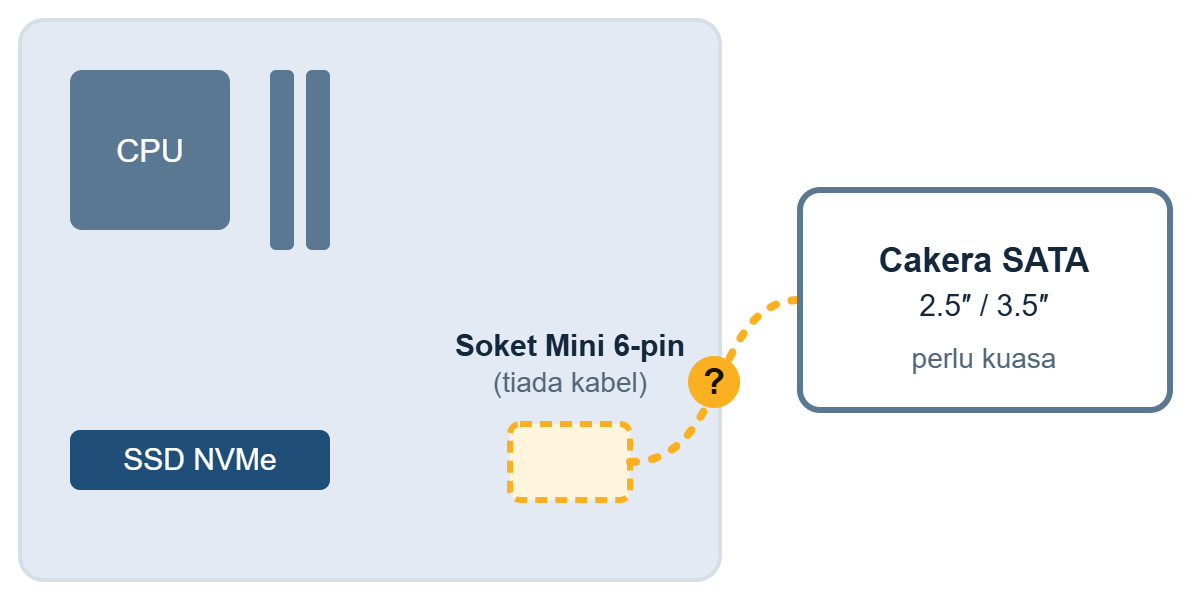
Susun atur biasa Dell baru: SSD NVMe berada pada papan, dan soket kuasa untuk cakera SATA tiada kabel. Lakaran skematik sahaja.
Dua kabel yang nampak sama, tetapi tidak sama
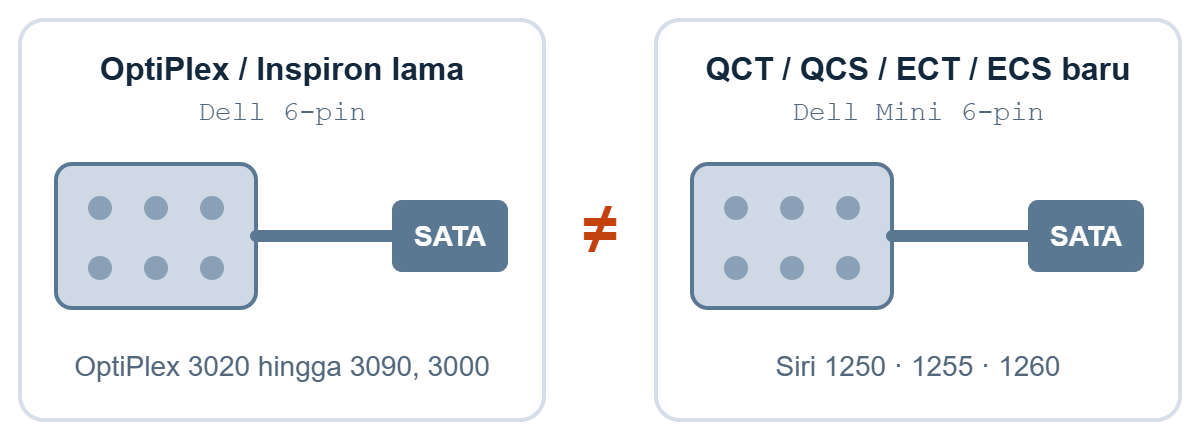
Kedua-dua generasi disebut “6-pin”, dan palamnya nampak sama. Namun kabelnya tidak boleh ditukar ganti, jadi anda tidak boleh memilih berdasarkan rupa palam. Pilih mengikut model Dell atau DP/N anda.
Generasi lama: OptiPlex 3020, 3040, 3046, 3050, 3060, 3070, 3080, 3090 dan 3000 (SFF dan MT), serta desktop Inspiron lama. Model OptiPlex lama yang lain, seperti siri 7000: hantar gambar kepada kami dan kami akan sahkan.
Generasi baru: Siri QCT, QCS, ECT, ECS, QBT, QVS dan Pro, 1250, 1255 dan 1260.
Kedua-dua kabel ini tidak boleh ditukar ganti, walaupun palamnya nampak sama. Palam yang muat bukan bukti kabel itu betul. Pilih mengikut model Dell, dan tanya kami jika tidak pasti.
Skematik. Kedua-dua palam nampak sama, jadi rupa sahaja tidak dapat memberitahu kabel mana yang anda perlukan. Sentiasa padankan mengikut model Dell atau DP/N.
Kabel mana yang patut anda pesan?
Keempat-empat kabel ini tersedia dalam stok atau boleh ditempah melalui NJ Bravo. Setiap halaman produk menyenaraikan model yang sesuai.
OptiPlex lama (SFF / MT) dan desktop Inspiron lama
1 SATA + 1 mini SATA power
OEM serasi
Senarai model serasi berbeza sedikit antara satu listing dengan yang lain. Semak senarai pada halaman produk untuk model anda sebelum membuat pesanan.
Cara memilih antara kabel ini
Satu cakera tambahan, bahagian Dell asli: kabel 1-SATA 05GPWK.
Satu cakera SATA ditambah optical drive, bahagian Dell asli: kabel 0YJW72.
Kos lebih rendah, atau anda perlukan dua output SATA: kabel OEM. Pilih 2 SATA hanya jika casis anda ada bay cakera kedua.
OptiPlex atau Inspiron lama: kabel 6-pin, bukan Mini 6-pin.
Semak sebelum membuat pesanan
Cari model anda. Baca nama model pada label casis atau dalam System Information Windows. Catat nama penuh dan siri.
Lihat soket kuasa. Matikan PC, cabut kord kuasa dan buka casis. Jika sudah ada kabel terpasang, seperti kabel untuk optical drive, baca Dell DP/N yang tercetak padanya. Jangan memilih berdasarkan palam sahaja, kerana kedua-dua generasi nampak sama.
Kira bilangan cakera. Satu cakera tambahan memerlukan kabel 1-SATA. Dua cakera memerlukan pilihan OEM 2-SATA. Kabel ini hanya membekalkan kuasa, jadi pastikan juga casis anda mempunyai bay cakera kosong dan sambungan data SATA.
Masih tidak pasti. Hantar nama model dan gambar jelas soket kuasa pada papan induk. Kami semak nombor bahagian dan penyambung sebelum anda membuat pesanan.
Kabel salah, papan induk rosak
Menggunakan kabel generasi yang salah boleh merosakkan papan induk dan dalam keadaan paling teruk membakarnya. Palamnya nampak sama, jadi kabel yang muat bukan bukti ia betul. Sebelum memasang:
Matikan PC, cabut kord kuasa dan tunggu sebentar sebelum membuka casis.
Pilih mengikut model Dell dan DP/N, bukan rupa palam.
Pastikan Dell DP/N pada kabel atau papan anda sama dengan bahagian yang dipesan.
Jika tidak pasti, tanya kami sebelum membuat pesanan atau memasang.
Waranti penggantian 3 bulan kami meliputi kecacatan pembuatan. Ia tidak meliputi kerosakan akibat pemasangan yang tidak betul.
Model baru yang lain
Sesetengah workstation baru menggunakan kabel yang berbeza pula. Dell Pro Max Tower T2 (FCT2250), contohnya, menggunakan kabel Dell 8-pin ke 2-SATA.
Newer Dell desktops such as the QCT, QCS, ECT and ECS 1250, 1255 and 1260 series are built around NVMe storage and, in the default configuration, ship without a SATA power cable. If you want to add a 2.5″ or 3.5″ drive, you need the right cable first. The wrong one can damage the motherboard.
Quick answer
Newer Dell (QCT, QCS, ECT, ECS, 1250 / 1255 / 1260 series): you need a Mini 6-pin to SATA power cable.
Older OptiPlex / Inspiron (for example OptiPlex 3040 to 3000 series): you need the older 6-pin SATA power cable.
Why your new Dell has no SATA power cable
Most current Dell business desktops are configured with a single NVMe SSD. With no SATA drive to power, the default configuration of the QCT, QCS, ECT and ECS 1250, 1255 and 1260 series does not include a SATA power cable. Newer models may follow the same pattern.
This catches many users out. You buy a spare HDD or SSD for extra storage, open the chassis, and find nothing to plug it into. A generic power supply cable will not fit either, because Dell uses its own connector on the motherboard.
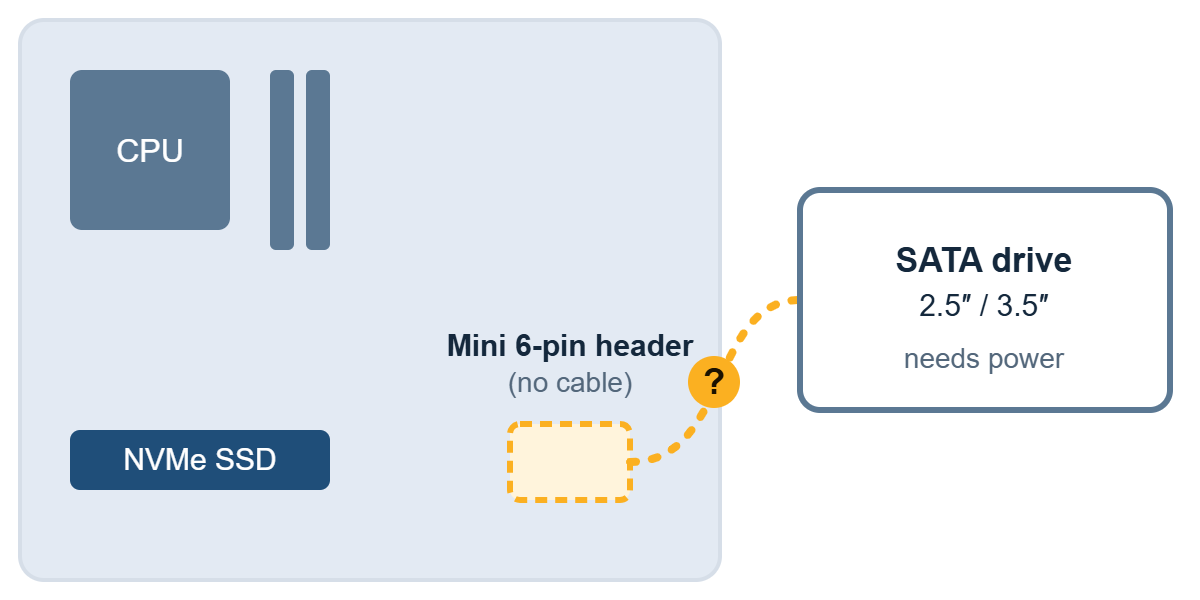
Typical new Dell layout: the NVMe SSD sits on the board, and the power header for SATA drives has no cable attached. Schematic only.
Two cables that look alike and are not
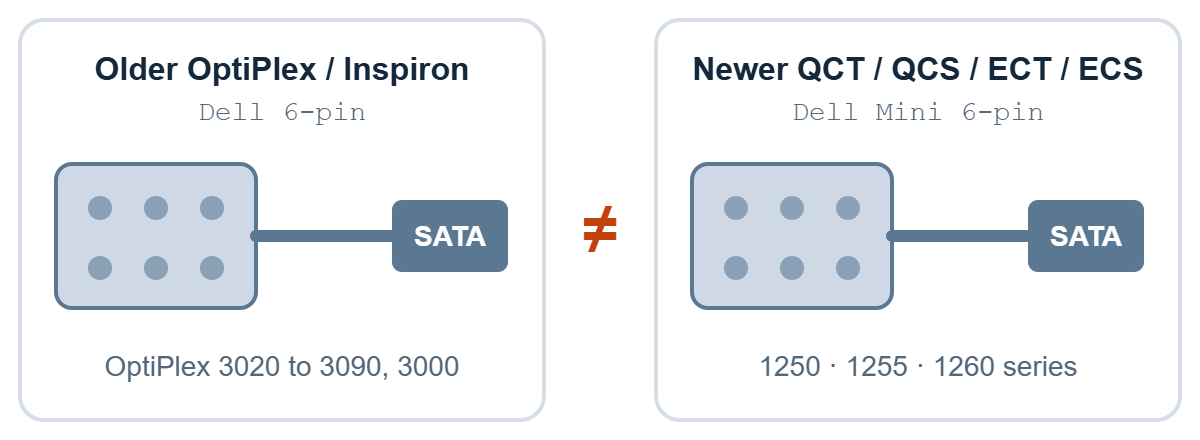
Both generations are described as “6-pin”, and the plugs look the same. The cables are still not interchangeable, so you cannot choose by how the plug looks. Choose by your Dell model or the DP/N.
Older generation: OptiPlex 3020, 3040, 3046, 3050, 3060, 3070, 3080, 3090 and 3000 (SFF and MT), and older Inspiron desktops. Other older OptiPlex models, such as the 7000 series: send us a photo and we will confirm.
Newer generation: QCT, QCS, ECT, ECS, QBT, QVS and Pro, 1250, 1255 and 1260 series.
The two cables are not interchangeable, even though the plugs look the same. A plug that fits is not proof that it is the right cable. Choose by Dell model, and ask us if you are unsure.
Schematic. The two plugs look the same, so appearance alone cannot tell you which cable you need. Always match by Dell model or DP/N.
Which cable should you order?
All four cables are in stock or available on order from NJ Bravo. Each product page lists the exact models it fits.
Older OptiPlex (SFF / MT) and older Inspiron desktops
1 SATA + 1 mini SATA power
OEM compatible
The compatible-model lists differ slightly between listings. Check the list on the page for your exact model before you order.
How to choose between them
One extra drive, original Dell part: the 05GPWK single-SATA cable.
One SATA drive plus an optical drive, original Dell part: the 0YJW72 cable.
Lower cost, or you need two SATA outputs: the OEM cable. Pick 2 SATA only if your chassis has a second drive bay.
Older OptiPlex or Inspiron: the 6-pin cable, never the Mini 6-pin.
Check before you order
Find your model. Read the model name on the chassis label or in Windows System Information. Note the full name and series.
Look at the power header. Switch the PC off, unplug the power cord and open the chassis. If a cable is already installed, such as one for an optical drive, read the Dell DP/N printed on it. Do not choose by the plug alone, because both generations look the same.
Count your drives. One extra drive needs a 1-SATA cable. Two need the OEM 2-SATA option. The cable carries power only, so also confirm that your chassis has a free drive bay and a SATA data connection.
Still unsure. Send us the model name and a clear photo of the motherboard power header. We will check the part number and connector before you order.
Wrong cable, damaged motherboard
Using a cable from the wrong generation can damage the motherboard and in the worst case burn it. The plugs look the same, so a cable that fits is not proof that it is correct. Before installing:
Switch off, unplug the power cord and wait a moment before opening the chassis.
Choose by Dell model and DP/N, not by how the plug looks.
Check that the Dell DP/N on your existing cable or board matches the part you ordered.
If you are unsure, ask us before you order or install.
Our 3-month replacement warranty covers manufacturing defects. It does not cover damage from improper installation.
Other newer models
Some newer workstations use different cables again. The Dell Pro Max Tower T2 (FCT2250), for example, uses a Dell 8-pin to 2-SATA cable.
The LENKENG LKV373 HDMI extender is one of the most common ways to send an HDMI video signal over a single network cable in Malaysia. Factories use it to put production dashboards and CCTV views on screens across the shop floor. Companies use it for reception displays, meeting rooms and lobby signage. Hotels use it for lobby screens, function rooms, ballrooms and F&B menu boards.
The most common problem we see is not a broken unit. It is a version mismatch. A customer buys a replacement sender or receiver, plugs it in, and gets no picture, because the new unit is a different version from the old one. This guide shows you how to check your version in 30 seconds and what to buy.
The Golden Rule: Sender and Receiver Must Be the Same Version
Every LKV373 system has two parts:
Sender (TX): connects to the video source, such as a PC, camera, media player or decoder.
Receiver (RX): connects to each screen or LED display.
LENKENG has released the LKV373 in three versions: V2.0, V3.0 and V4.0. They look almost the same from the outside, but they cannot talk to each other:
RX ↓ TX →
V2.0 TX
V3.0 TX
V4.0 TX
V2.0 RX
✅
❌
❌
V3.0 RX
❌
✅
❌
V4.0 RX
❌
❌
✅
✅ = works ❌ = no picture (TX = sender, RX = receiver)
If your new unit shows no picture with your existing unit, check the versions first before assuming it is faulty.
Illustrative image.
Step 1: Find Your Version
The version is printed on the unit itself. You do not need any tools.
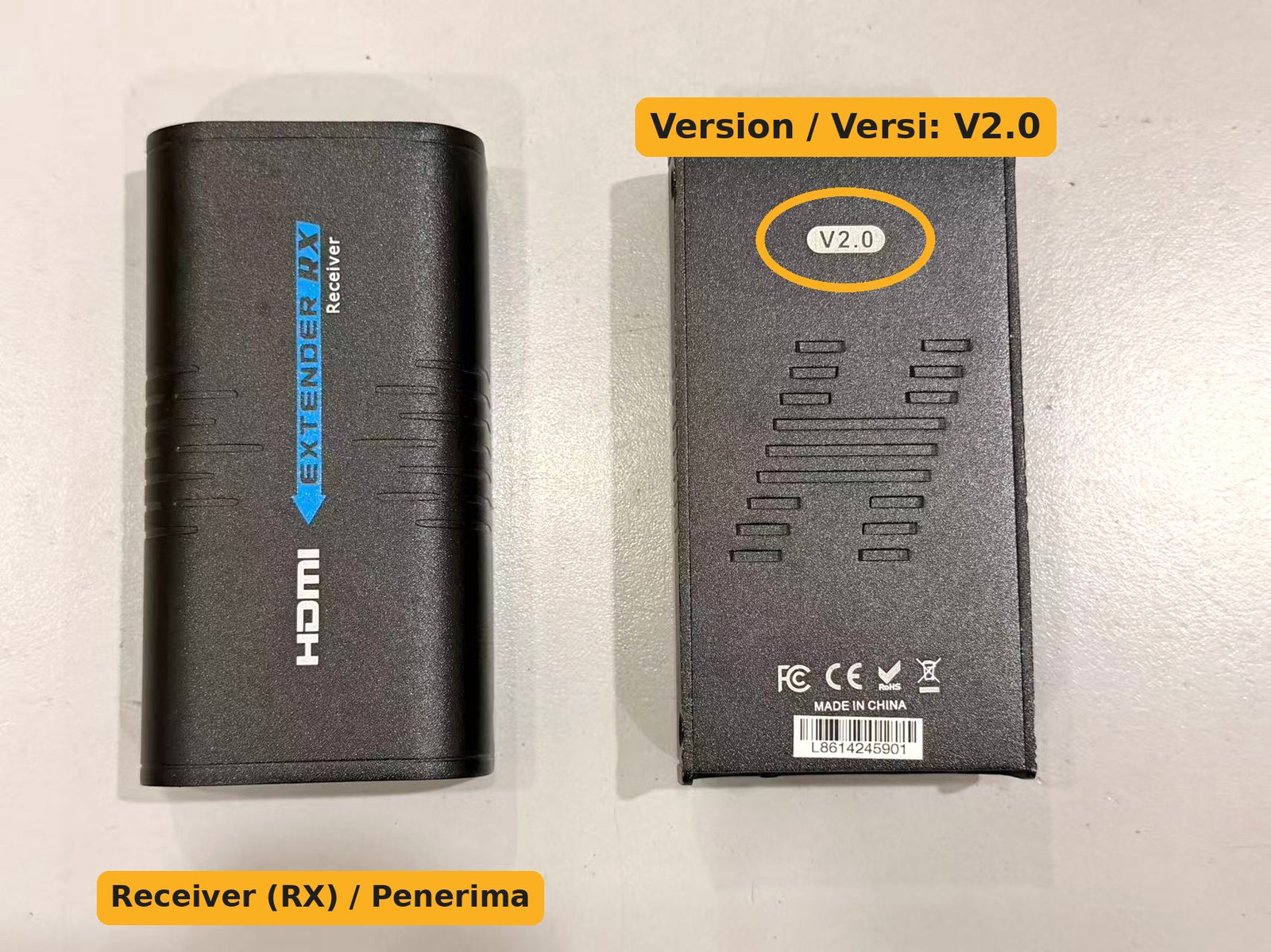
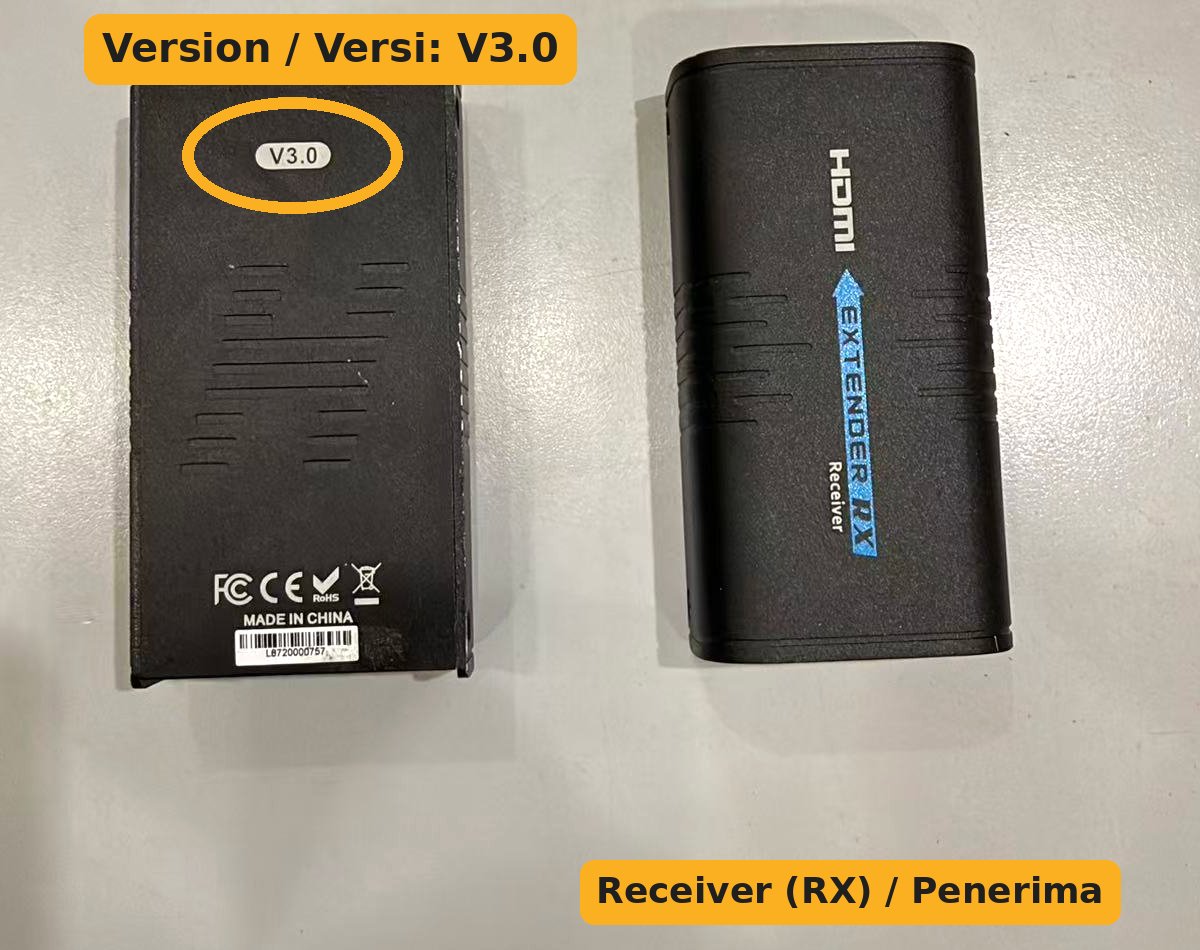
V2.0 and V3.0: look underneath
Turn the unit over. On older units there is a small oval badge on the bottom of the metal casing that says V2.0 or V3.0. V3.0 units are sometimes sold as “LKV373A”.
V2.0: version label on the bottom of the casing. Actual unit photo.V3.0: version label on the bottom of the casing. Actual unit photo.
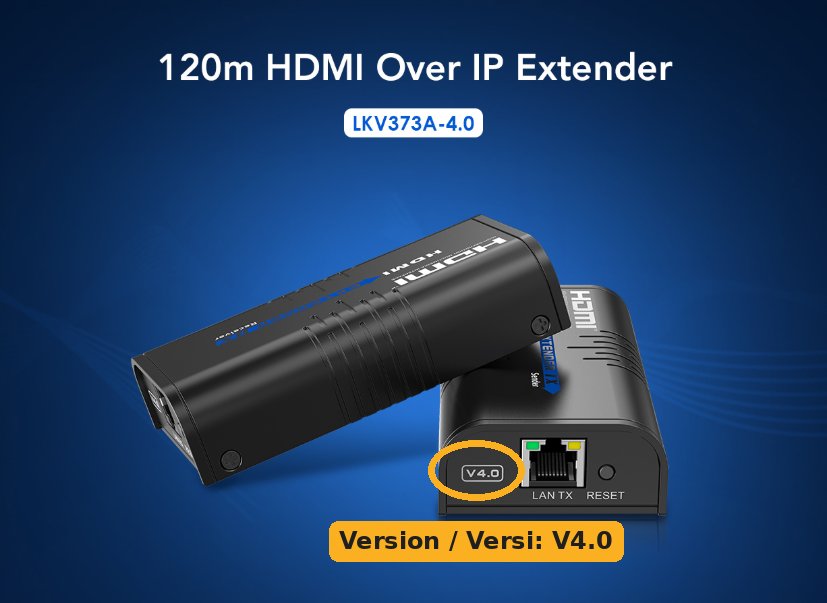
V4.0: look at the end panel
On V4.0 units, V4.0 is printed on the end panel next to the LAN port, and the box and listing usually say “LKV373A-4.0”.
V4.0: version printed beside the LAN port. Product image.
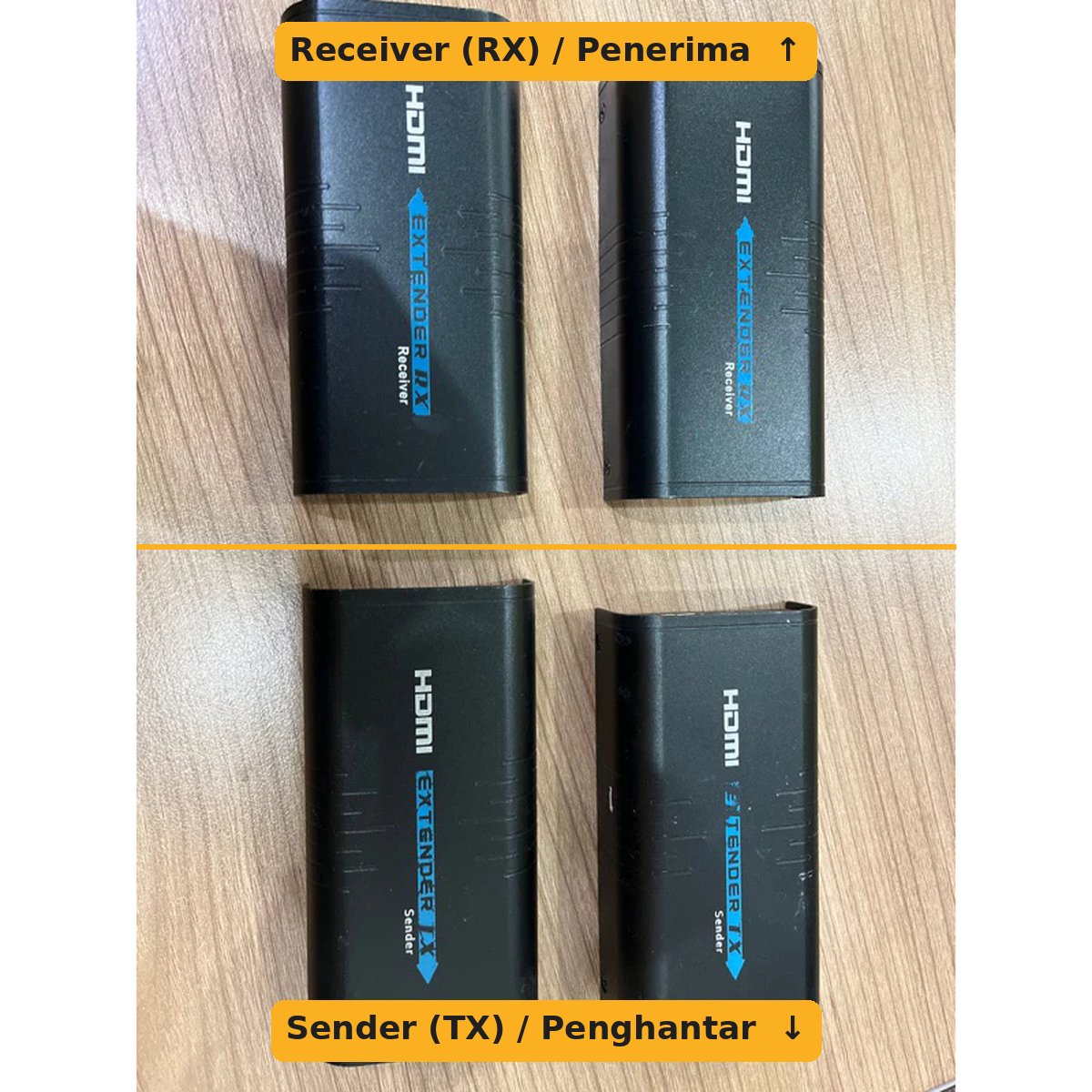
Sender or receiver?
The top of the casing tells you which part you have: “EXTENDER TX – Sender” or “EXTENDER RX – Receiver”. The arrow points away from the sender and towards the receiver.
Top label: Receiver (RX) above, Sender (TX) below. Actual unit photos.
Tip: take one photo of the version label and one of the top label before you remove the unit from the wall or ceiling. It saves a second climb up the ladder.
Step 2: Choose What to Buy
Your situation
What to buy
One unit is faulty, the other still works, and you know the version is V2.0 or V3.0
One extra receiver of the same version as your sender, plus a network switch
Important: our new stock is V4.0. V2.0 and V3.0 are only available as used, tested units, so supply depends on stock. If you have several old receivers, upgrading the whole system to V4.0 at once avoids future mix-ups.
Typical Setups: Factory, Office and Hotel
The LKV373 is usually used to send one video source to one or more screens that are far away from it:
Factory and warehouse: one PC in the office shows production output, KPI or CCTV on screens at each production line or loading bay.
Office: a media player or PC in the server room feeds the reception screen, lobby signage and meeting-room TVs.
Hotel: one source feeds lobby displays, function-room and ballroom screens, or menu boards in restaurants and cafes.
How to connect one source to several screens:
Connect the video source (PC, media player, NVR or laptop) to the sender (TX) with an HDMI cable.
Run a network cable from the sender to a network switch.
From the switch, run one network cable to each receiver (RX), one receiver per screen.
Connect each receiver to its screen with an HDMI cable.
Distance: up to 120m per cable run on Cat6 at 1080p (about 100m on Cat5e).
All receivers must be the same version as the sender. One wrong-version receiver will not show a picture.
Do not use a PoE switch. Power over Ethernet can damage the units. Use a normal network switch, and power each unit with its own adaptor.
Keep it off the main network: use a separate switch for the extenders rather than the office LAN or guest Wi-Fi, so the video stays smooth and does not slow down other users.
Factory floors: route the network cable away from motor and high-voltage power cables, and use shielded (STP) cable in electrically noisy areas.
Quick Checks Before You Call It Faulty
Versions match? Check the labels on the sender and every receiver.
Power reset: unplug the power on both the sender and receiver, wait 10 seconds and plug back in. Static or power surges can freeze the units.
Network cable: try a known-good cable, and check the LAN port lights are on at both ends.
HDMI cable and screen input: make sure the screen is on the correct HDMI input.
Bypass the switch: connect the sender directly to one receiver with a single cable to test.
If it still does not work after these checks, the unit may be faulty. Send us photos of both labels and we will help you confirm what to replace.
What to Send Us When You Order
A photo of the version label (bottom of V2.0/V3.0, end panel of V4.0)
A photo of the top label (Sender or Receiver)
Which unit is faulty, and how many screens you run
WhatsApp the photos to +607-359 6955 and we will confirm the right unit before you pay.
Frequently Asked Questions
Can I use a V4.0 receiver with my old V2.0 or V3.0 sender?
No. V4.0 is not compatible with V2.0 or V3.0. Either buy the same version as your existing unit, or replace both sender and receiver with V4.0.
Are V2.0 and V3.0 compatible with each other?
No. A V2.0 sender will not work with a V3.0 receiver, and the other way round.
My unit has no version label. What now?
Send us a photo of the unit from all sides. If we cannot confirm the version, replacing both units with a V4.0 set is the safest choice.
How many screens can one sender feed?
One sender can feed many receivers through a network switch, as long as every receiver is the same version.
Do you sell used units with warranty?
Yes. Our used V2.0 and V3.0 units are tested before shipping and come with a 1-month warranty. They are supplied as the unit only, without box, adaptor or cables.
HDMI extender LENKENG LKV373 ialah antara cara paling biasa di Malaysia untuk menghantar isyarat video melalui satu kabel rangkaian (LAN). Masjid dan surau menggunakannya untuk memaparkan imam, khutbah atau paparan waktu solat pada skrin tambahan di dewan utama, ruang muslimat dan tingkat atas. Pejabat, sekolah dan kedai pula menggunakannya untuk bilik mesyuarat, kelas dan paparan iklan digital.
Masalah paling biasa yang kami jumpa bukan unit rosak, tetapi versi tidak sepadan. Pelanggan membeli penghantar atau penerima gantian, memasangnya, dan tiada gambar langsung, kerana unit baharu itu versi yang berbeza daripada unit lama. Panduan ini menunjukkan cara menyemak versi anda dalam 30 saat dan apa yang perlu dibeli.
Peraturan Utama: Penghantar dan Penerima Mesti Versi yang Sama
Setiap sistem LKV373 ada dua bahagian:
Penghantar / Sender (TX): disambung ke sumber video, seperti PC, kamera, pemain media atau dekoder.
Penerima / Receiver (RX): disambung ke setiap skrin atau paparan LED.
LENKENG telah mengeluarkan LKV373 dalam tiga versi: V2.0, V3.0 dan V4.0. Rupanya hampir sama dari luar, tetapi ia tidak boleh berhubung antara satu sama lain:
RX ↓ TX →
V2.0 TX
V3.0 TX
V4.0 TX
V2.0 RX
✅
❌
❌
V3.0 RX
❌
✅
❌
V4.0 RX
❌
❌
✅
✅ = berfungsi ❌ = tiada gambar (TX = penghantar, RX = penerima)
Jika unit baharu anda tidak memaparkan gambar bersama unit sedia ada, semak versi dahulu sebelum menganggap ia rosak.
Imej ilustrasi.
Langkah 1: Kenal Pasti Versi Anda
Versi tercetak pada unit itu sendiri. Tiada alat diperlukan.
V2.0 dan V3.0: lihat di bahagian bawah
Terbalikkan unit. Pada unit lama, terdapat label bujur kecil di bahagian bawah casing logam yang tertulis V2.0 atau V3.0. Unit V3.0 kadang-kadang dijual sebagai “LKV373A”.
V2.0: label versi di bahagian bawah casing. Gambar unit sebenar.V3.0: label versi di bahagian bawah casing. Gambar unit sebenar.
V4.0: lihat di panel hujung
Pada unit V4.0, V4.0 tercetak di panel hujung bersebelahan port LAN, dan kotak serta penyenaraian biasanya tertulis “LKV373A-4.0”.
V4.0: versi tercetak di sebelah port LAN. Gambar produk.
Penghantar atau penerima?
Bahagian atas casing menunjukkan jenis unit anda: “EXTENDER TX – Sender” (penghantar) atau “EXTENDER RX – Receiver” (penerima). Anak panah menghala dari penghantar ke arah penerima.
Label atas: Penerima (RX) di atas, Penghantar (TX) di bawah. Gambar unit sebenar.
Tip: ambil satu gambar label versi dan satu gambar label atas sebelum menanggalkan unit dari dinding atau siling. Ini menjimatkan anda daripada naik tangga sekali lagi.
Langkah 2: Pilih Apa yang Perlu Dibeli
Situasi anda
Apa yang perlu dibeli
Satu unit rosak, satu lagi masih berfungsi, dan anda tahu versinya V2.0 atau V3.0
Anda tidak jumpa versi, label sudah hilang, atau kedua-dua unit sudah lama
Tukar kedua-duanya kepada set LKV373 V4.0 (TX + RX) baharu. Ini penyelesaian jangka panjang yang paling boleh dipercayai.
Menambah skrin pada sistem sedia ada
Satu penerima tambahan versi yang sama dengan penghantar anda, serta suis rangkaian (network switch)
Penting: stok baharu kami ialah V4.0. V2.0 dan V3.0 hanya didapati sebagai unit terpakai yang telah diuji, jadi bekalan bergantung pada stok. Jika anda ada beberapa penerima lama, menaik taraf seluruh sistem kepada V4.0 sekali gus mengelakkan masalah bercampur versi pada masa hadapan.
Penggunaan LKV373 di Masjid atau Surau
Susunan biasa menghantar satu sumber ke beberapa skrin:
Sambung sumber video (PC, kamera atau pemain media) ke penghantar (TX) dengan kabel HDMI.
Tarik kabel rangkaian dari penghantar ke suis rangkaian (network switch).
Dari suis, tarik satu kabel rangkaian ke setiap penerima (RX), satu penerima bagi setiap skrin.
Sambung setiap penerima ke skrinnya dengan kabel HDMI.
Jarak: sehingga 120m bagi setiap tarikan kabel menggunakan Cat6 pada 1080p (kira-kira 100m dengan Cat5e).
Semua penerima mesti versi yang sama dengan penghantar. Satu penerima versi salah tidak akan memaparkan gambar.
Jangan gunakan suis PoE. Power over Ethernet boleh merosakkan unit. Gunakan suis rangkaian biasa, dan bekalkan kuasa kepada setiap unit dengan adaptornya sendiri.
Jika boleh, gunakan suis berasingan untuk extender, bukan rangkaian pejabat atau Wi-Fi masjid, supaya video lebih lancar.
Semakan Ringkas Sebelum Mengatakan Unit Rosak
Versi sepadan? Semak label pada penghantar dan setiap penerima.
Tetap semula kuasa: cabut kuasa pada penghantar dan penerima, tunggu 10 saat dan pasang semula. Elektrik statik atau lonjakan kuasa boleh menyebabkan unit tergantung.
Kabel rangkaian: cuba kabel yang diketahui baik, dan pastikan lampu port LAN menyala di kedua-dua hujung.
Kabel HDMI dan input skrin: pastikan skrin berada pada input HDMI yang betul.
Uji tanpa suis: sambung penghantar terus ke satu penerima dengan satu kabel untuk menguji.
Jika masih tidak berfungsi selepas semakan ini, unit mungkin rosak. Hantar gambar kedua-dua label kepada kami dan kami akan bantu mengesahkan unit yang perlu ditukar.
Apa yang Perlu Dihantar kepada Kami Semasa Membuat Pesanan
Gambar label versi (bahagian bawah untuk V2.0/V3.0, panel hujung untuk V4.0)
Gambar label atas (Sender atau Receiver)
Unit mana yang rosak, dan berapa banyak skrin yang digunakan
WhatsApp gambar tersebut ke +607-359 6955 dan kami akan mengesahkan unit yang betul sebelum anda membayar.
Soalan Lazim
Bolehkah saya guna penerima V4.0 dengan penghantar lama V2.0 atau V3.0?
Tidak. V4.0 tidak serasi dengan V2.0 atau V3.0. Sama ada beli versi yang sama dengan unit sedia ada, atau tukar penghantar dan penerima kepada V4.0.
Adakah V2.0 dan V3.0 serasi antara satu sama lain?
Tidak. Penghantar V2.0 tidak akan berfungsi dengan penerima V3.0, begitu juga sebaliknya.
Unit saya tiada label versi. Apa perlu dibuat?
Hantar gambar unit dari semua sisi kepada kami. Jika kami tidak dapat mengesahkan versinya, menukar kedua-dua unit kepada set V4.0 ialah pilihan paling selamat.
Berapa banyak skrin boleh disambung kepada satu penghantar?
Satu penghantar boleh menyalurkan isyarat kepada banyak penerima melalui suis rangkaian, asalkan setiap penerima adalah versi yang sama.
Adakah unit terpakai disertakan waranti?
Ya. Unit terpakai V2.0 dan V3.0 kami diuji sebelum dihantar dan disertakan waranti 1 bulan. Ia dibekalkan sebagai unit sahaja, tanpa kotak, adaptor atau kabel.
Jika anda menguruskan server, UPS atau PDU rak, anda tentu pernah melihat kabel berlabel C13, C14, C19 dan C20. Ini ialah jenis penyambung IEC 60320. Tersalah pesan adalah kesilapan biasa yang menyusahkan, kerana kabel yang sampai langsung tidak muat.
Panduan ini ditulis untuk pasukan IT, bilik server dan pejabat di Malaysia, yang menggunakan soket dinding plag 3 pin gaya UK. Kami menyimpan stok kabel kuasa ini di Johor Bahru dan menghantar ke seluruh Malaysia.
Peraturan Mudah: Nombor Ganjil = Betina, Nombor Genap = Jantan
Nombor ganjil (C13, C19) ialah penyambung betina. Ia dicucuk ke dalam peranti.
Nombor genap (C14, C20) ialah soket atau plag jantan, terdapat pada peranti, PDU atau UPS.
Ia berpasangan: C13 ↔ C14 dan C19 ↔ C20.
Perbandingan Ringkas
Penyambung
Jenis
Kadaran (IEC)
Di mana anda melihatnya
C13
Betina
10A
Hujung kabel yang dicucuk ke PC, monitor atau kebanyakan PSU server
C14
Jantan
10A
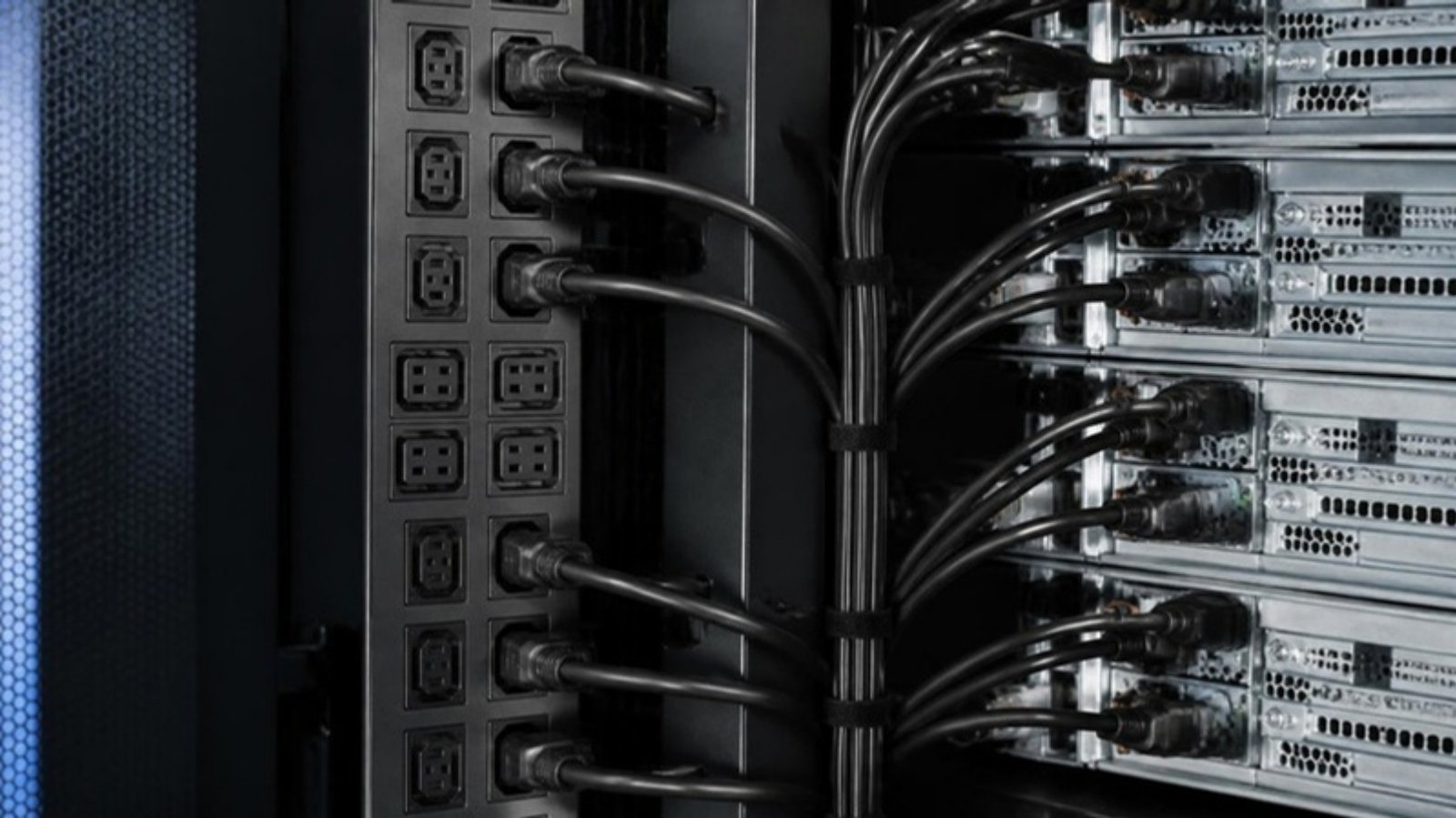
Soket masuk pada PSU; soket keluar pada PDU rak dan UPS
C19
Betina
16A
Hujung kabel untuk PSU berkuasa tinggi, casis blade dan UPS besar
C20
Jantan
16A
Soket masuk pada peralatan berkuasa tinggi; soket keluar PDU arus tinggi
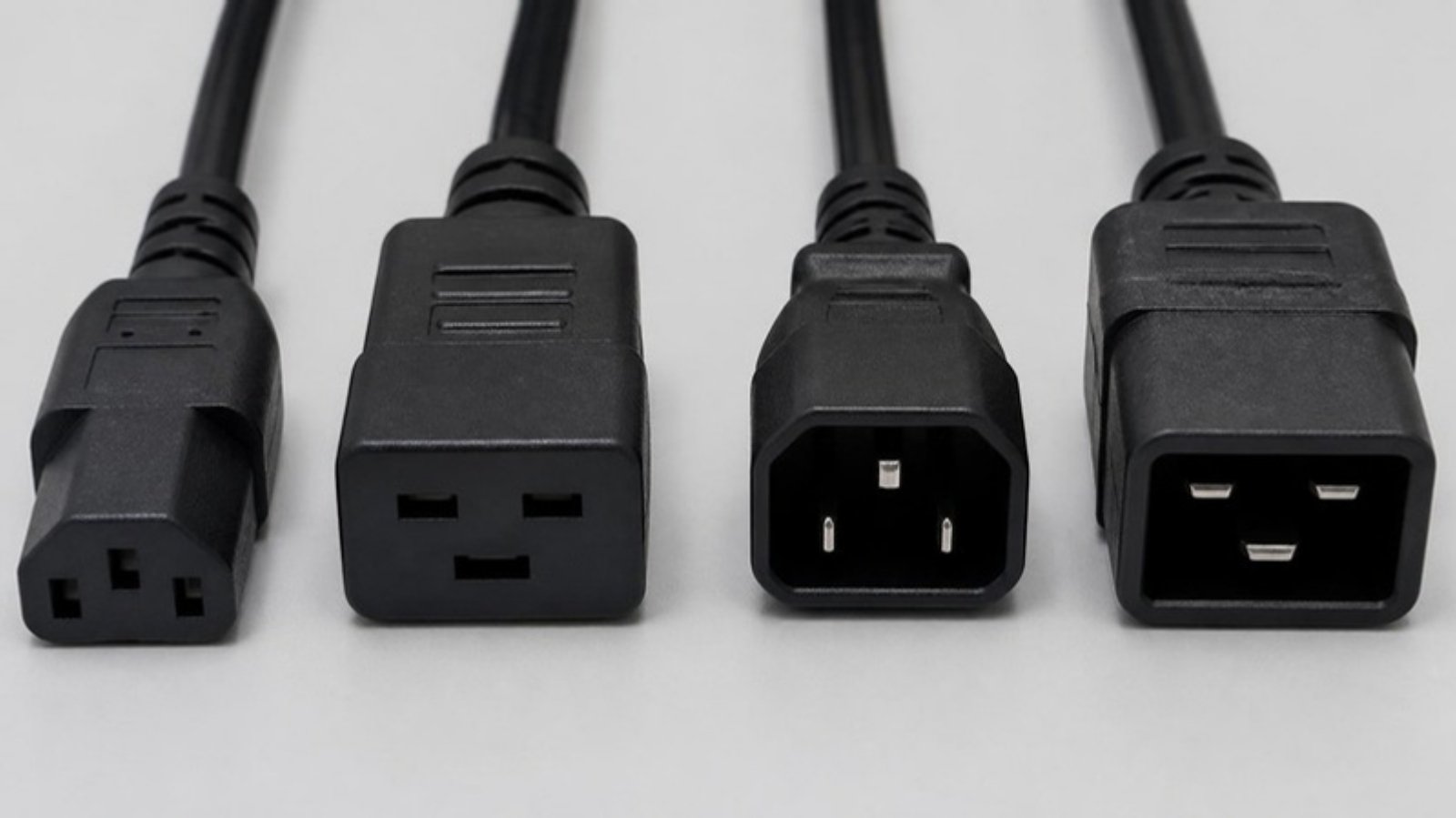
Cara membezakannya: C13/C14 mempunyai tiga pin dalam susunan segi tiga. C19/C20 mempunyai tiga pin leper segi empat dalam satu barisan dan saiznya jelas lebih besar.
Imej ilustrasi.
Gabungan Kabel Yang Biasa
Plag UK 3 pin → C13: kabel soket dinding standard di Malaysia untuk PC, monitor dan server kecil. Contoh: Power Cord UK Plug to C13 (2M~15M).
C14 → C13: kabel “jumper” antara PDU rak atau UPS dengan server. Ini yang paling biasa dalam rak server. Contoh: Power Cord C13 to C14 1.0mm² (2M~10M).
Kebanyakan panduan kabel dalam talian ditulis untuk Amerika Syarikat atau Eropah. Di Malaysia, beberapa perkara berbeza:
Plag dinding: Malaysia menggunakan plag UK 3 pin (BS 1363, “Jenis G”). Kabel dengan plag 2 pin AS atau pin bulat Eropah tidak akan muat soket tempatan.
Voltan: 230–240V, 50Hz. Bekalan kuasa server dan PC yang dijual di sini menyokong julat voltan automatik, jadi yang penting ialah kabelnya.
Plag berfius: plag UK 3 pin mempunyai fius di dalamnya. Jika PC atau server tiba-tiba tiada kuasa, periksa fius plag dahulu sebelum menyalahkan PSU.
Elakkan penyesuai pelancong: jangan jalankan server atau UPS melalui plag asing dengan penyesuai pelancong. Gunakan kabel plag UK 3 pin ke C13 atau C19 yang betul.
Nama tempatan: di kedai Malaysia, kabel C13 sering dipanggil “kabel power 3 pin”, “wayar power PC” atau “kabel cerek”, dan kabel C5 dipanggil “kabel Mickey Mouse”.
Perlukan kabel dengan segera? Kami menghantar dari Johor Bahru ke Kuala Lumpur, Selangor, Pulau Pinang, Johor dan seluruh Semenanjung Malaysia, serta Sabah dan Sarawak.
Server Mana Perlukan Kabel Mana?
Sebagai panduan umum, kebanyakan PSU sehingga kira-kira 1100W menggunakan soket masuk C14 (perlukan kabel C13). PSU yang lebih besar (sekitar 1400W ke atas), server GPU dan casis blade selalunya menggunakan soket masuk C20 (perlukan kabel C19). Sentiasa semak soket masuk pada PSU sebenar anda.
C7/C8 (“angka 8”): peranti kecil 2 pin, pencetak dan sesetengah penyesuai (kabel plag UK ke C7).
C15/C16: rupa seperti C13/C14 tetapi ada takuk untuk kegunaan suhu tinggi (cerek, sesetengah peralatan rangkaian). Contoh: kabel plag UK ke C15, kabel C14 ke C15.
Soalan Lazim
Bolehkah kabel C13 dicucuk ke soket masuk C20?
Tidak. Saiznya berbeza. Anda perlukan kabel C19 untuk soket masuk C20.
Adakah “kabel cerek” sama dengan kabel C13?
Tidak betul-betul. Kabel cerek yang sebenar ialah C15, yang muat soket masuk C14. Kabel C13 tidak muat soket masuk cerek C16.
UPS saya ada soket keluar C13. Kabel apa perlu untuk sambung server?
Kabel jumper C14 → C13.
Adakah anda membekalkan kabel kuasa?
Ya. Lihat rangkaian penuh kabel kuasa dan penyesuai kami (C13, C14, C15, C19, C20, C5, C7 dan pemisah) dengan panjang dari 1M hingga 15M. Untuk panjang atau jenis lain, beritahu kami jenis penyambung, panjang dan kuantiti.
Di mana boleh beli kabel kuasa C13, C14, C19 atau C20 di Malaysia?
Daripada kami. Kami menyimpan stok kabel plag UK 3 pin ke C13 dan C19, kabel jumper C13 ke C14 dan C19 ke C20, pemisah dan penyesuai dengan panjang 1M hingga 15M, dan menghantar ke seluruh negara. Lihat kabel kuasa dan penyesuai kami.
Setiap port USB yang terdedah ialah satu pintu masuk. Seseorang boleh menyalin fail ke pemacu pena, memasang peranti yang dijangkiti, atau menyambung peranti yang tidak diluluskan. Polisi perisian membantu, tetapi ia boleh tersalah konfigurasi atau dipintas. Penyekat port USB (USB port blocker) ialah penyelesaian fizikal yang mudah: kunci kecil yang dimasukkan ke dalam port dan hanya boleh dikeluarkan dengan kunci yang sepadan.
Panduan ini menerangkan cara penyekat port USB-A dan USB-C Lindy berfungsi, pek mana yang perlu dipilih, dan cara memasangnya di pejabat, sekolah, klinik atau kilang.
Apakah Penyekat Port USB?
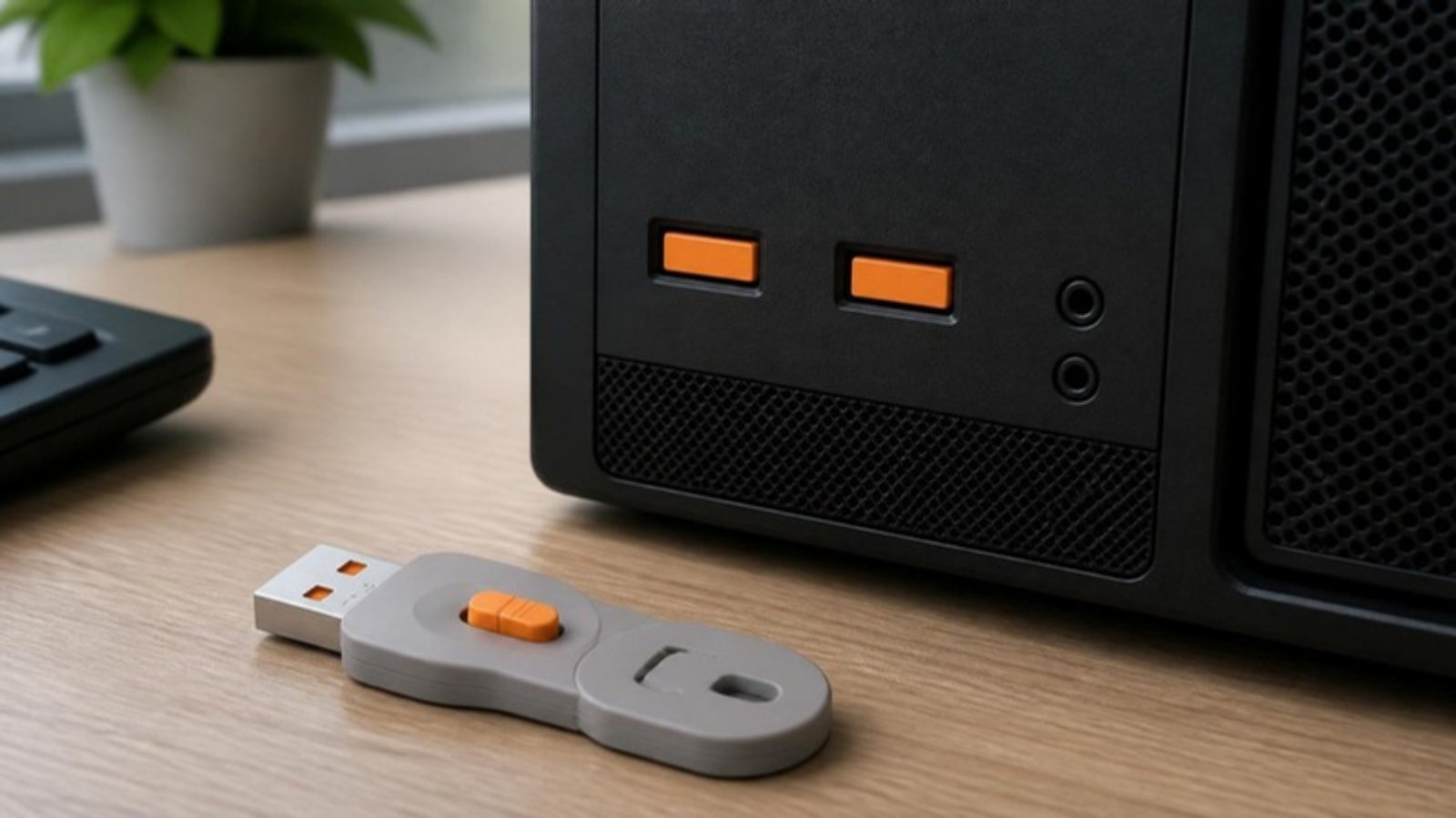
Penyekat port ialah kunci plastik yang dibentuk untuk muat di dalam port USB. Setelah ditolak masuk, ia terkunci dan tidak boleh ditarik keluar dengan tangan. Untuk mengeluarkannya, gunakan kunci yang sepadan untuk melepaskan selaknya. Tiada perisian, pemacu (driver) atau alat diperlukan, dan ia berfungsi dengan mana-mana sistem pengendalian.
Menghalang kecurian data: pemacu USB, telefon atau cakera luaran tidak boleh disambungkan.
Mengurangkan risiko perisian hasad: menghalang pemacu USB yang dijangkiti daripada dipasang.
Pencegah yang jelas kelihatan: warna terang menunjukkan bahawa port itu dikawal.
Boleh dibuka semula: pasukan IT boleh membuka port dalam beberapa saat apabila benar-benar diperlukan.
Imej ilustrasi.
USB-A atau USB-C: Yang Mana Anda Perlukan?
Penyekat port USB-A
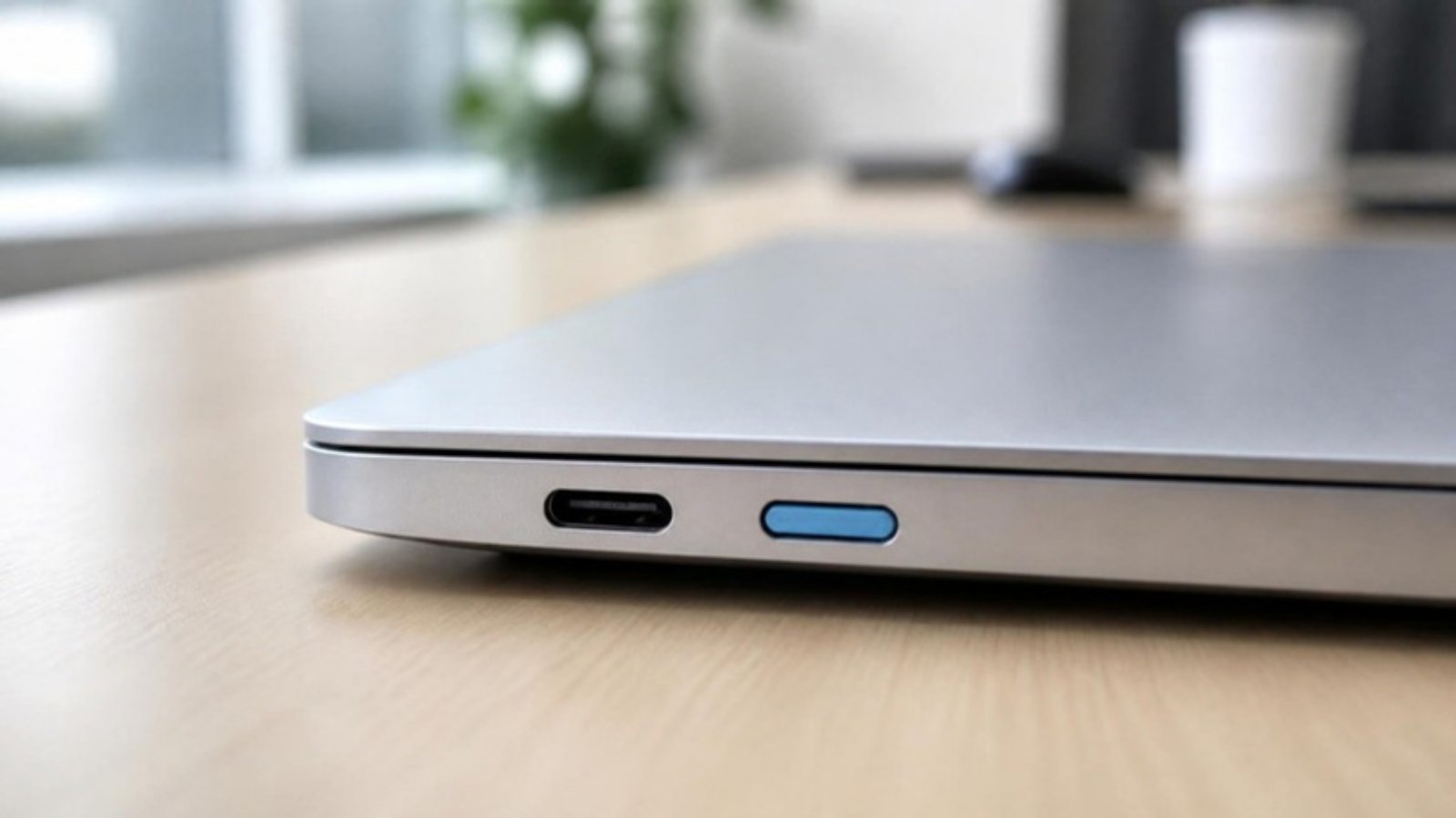
Penyekat port USB-C
Bentuk port
Port segi empat tepat yang lebih besar
Port bujur kecil yang boleh diterbalikkan
Peranti biasa
PC desktop, thin client, terminal POS, komputer riba lama, monitor dan dok
Komputer riba moden, ultrabook, tablet, dok baharu; juga muat port Thunderbolt 3/4
Banyak tempat kerja memerlukan kedua-duanya. PC desktop pejabat biasanya mempunyai port USB-A di depan dan belakang, manakala komputer riba kakitangan semakin banyak yang hanya ada USB-C.
Cara Sistem Kunci Berkod Warna Berfungsi
Penyekat port Lindy didatangkan dalam beberapa warna, dan setiap warna hanya boleh dibuka dengan anak kunci warna yang sama. Ini membolehkan anda menetapkan tahap akses yang mudah:
Tetapkan satu warna bagi setiap jabatan, tingkat atau cawangan (contohnya, biru untuk kewangan, hijau untuk kaunter hadapan).
Berikan anak kunci yang sepadan hanya kepada kakitangan IT yang bertanggungjawab bagi kawasan itu.
Anak kunci jabatan lain tidak boleh membuka port anda.
Penting: pek tambahan 10 kunci mengandungi kunci sahaja, tanpa anak kunci. Beli kit permulaan dahulu (4 kunci + 1 anak kunci) dalam warna yang dikehendaki, kemudian tambah pek tambahan dalam warna yang sama.
Imej ilustrasi.
Pek Mana Yang Patut Dibeli?
Pejabat kecil atau beberapa PC sahaja: satu kit permulaan bagi setiap jenis port meliputi sehingga 4 port dan termasuk anak kunci.
Pemasangan seluruh jabatan: satu kit permulaan (untuk anak kunci) dan pek tambahan warna yang sama sehingga mencukupi.
Beberapa jabatan: satu kit permulaan bagi setiap warna, supaya setiap pasukan mempunyai anak kunci sendiri, kemudian pek tambahan mengikut warna.
Perlukan kuantiti khas? Kami boleh menyediakan pek dengan bilangan kunci dan anak kunci tertentu. Minta sebut harga.
Cara mudah mengira: semak setiap meja dan kira port yang terdedah bagi setiap peranti. Biarkan port yang digunakan untuk papan kekunci, tetikus atau dok tidak berkunci.
Di Mana Penyekat Port Paling Berguna
Kaunter penyambut tetamu dan PC kongsi: pelawat dan kakitangan sementara tidak boleh memasang pemacu mereka sendiri.
Komputer riba kewangan, HR dan pengurusan: melindungi fail sensitif daripada disalin keluar.
Sekolah dan makmal komputer: menghalang pelajar membawa permainan atau perisian hasad melalui pemacu USB.
Klinik dan hospital: melindungi stesen kerja rekod pesakit.
PC HMI dan SCADA di kilang: menjauhkan peranti USB yang tidak dikenali daripada sistem pengeluaran.
Kiosk dan terminal POS: mesin awam yang mudah diusik.
Imej ilustrasi.
Tip Pemasangan
Matikan atau kunci PC, kemudian tolak penyekat lurus ke dalam port sehingga berbunyi klik.
Tarik perlahan untuk memastikan ia sudah terkunci.
Untuk mengeluarkan, masukkan anak kunci yang sepadan dan luncurkannya untuk melepaskan kunci.
Catat warna mana diberikan kepada jabatan mana, dan simpan anak kunci ganti di tempat yang selamat.
Gabungkan dengan polisi USB dalam Windows atau perisian keselamatan endpoint anda untuk perlindungan berlapis.
Soalan Lazim
Adakah penyekat port memerlukan perisian atau pemacu?
Tidak. Ia berfungsi secara mekanikal sepenuhnya pada mana-mana komputer atau sistem pengendalian.
Bolehkah saya guna anak kunci warna lain?
Tidak. Setiap warna dikodkan kepada anak kuncinya sendiri. Inilah yang membolehkan anda mengasingkan jabatan.
Adakah pek 10 kunci disertakan anak kunci?
Tidak. Pek 10 kunci ialah pek tambahan. Beli kit permulaan 4 kunci untuk mendapatkan anak kunci, dalam warna yang sama.
Adakah penyekat USB-C muat port Thunderbolt?
Ya. Thunderbolt 3 dan 4 menggunakan bentuk penyambung USB-C, jadi penyekat USB-C boleh dipasang.
Adakah ia akan merosakkan port?
Tidak, jika dipasang dan dikeluarkan dengan anak kunci yang betul. Jangan sekali-kali memaksanya keluar dengan playar atau pemutar skru.
Dapatkan Penyekat Port Lindy di Malaysia
Lihat rangkaian Lock & Port Blocker kami, atau beritahu kami berapa banyak port USB-A dan USB-C yang perlu dikunci serta warna yang dikehendaki, dan kami akan mencadangkan gabungan kit permulaan dan pek tambahan yang sesuai. Minta Sebut Harga atau WhatsApp +607-359 6955.
Every exposed USB port is a way in. Someone can copy files to a thumb drive, plug in an infected device, or connect something you never approved. Software policies help, but they can be misconfigured or bypassed. A USB port blocker is the simple physical fix: a small lock that clicks into the port and can only be removed with a matching key.
This guide explains how Lindy USB-A and USB-C port blockers work, which pack to choose, and how to roll them out across an office, school, clinic or factory.
What Is a USB Port Blocker?
A port blocker is a plastic lock shaped to fit inside a USB port. Once pushed in, it latches and cannot be pulled out by hand. To remove it, you use a matching key that releases the latch. No software, drivers or tools are needed, and it works with any operating system.
Stops data theft: no USB drive, phone or external disk can be connected.
Reduces malware risk: blocks infected USB sticks and “found” drives from being plugged in.
Visible deterrent: the bright colour shows at a glance that the port is controlled.
Reversible: IT can unlock a port in seconds when it is genuinely needed.
Many workplaces need both. A typical office desktop has USB-A ports on the front and back, while staff laptops increasingly have only USB-C.
How the Colour-Coded Keys Work
Lindy port blockers come in several colours, and each colour only opens with the key of the same colour. That lets you build simple access levels:
Assign one colour per department, floor or site (for example, blue for finance, green for front desk).
Give the matching key only to the IT staff responsible for that area.
A key from another department cannot unlock your ports.
Important: the 10-lock refill packs contain locks only, no key. Buy a starter kit first (4 locks + 1 key) in the colour you want, then add refill packs in the same colour.
Illustrative image.
Which Pack Should You Buy?
Small office or a few PCs: one starter kit per port type covers up to 4 ports and includes the key.
Department-wide rollout: one starter kit (for the key) plus refill packs of the same colour until you have enough locks.
Multiple departments: one starter kit per colour, so each team has its own key, then refill packs per colour.
Need a custom quantity? We can put together packs with a specific number of locks and keys. Ask us for a quote.
Quick way to count: walk the floor and count exposed ports per device. Leave the ports you actually use for the keyboard, mouse or dock unlocked.
Where Port Blockers Make the Most Sense
Reception and shared PCs: visitors and temporary staff cannot plug in their own drives.
Finance, HR and management laptops: protect sensitive files from being copied out.
Schools and computer labs: stop students bringing in games or malware on USB sticks.
Clinics and hospitals: protect patient-record workstations.
Factory HMI and SCADA PCs: keep unknown USB devices away from production systems.
Kiosks and POS terminals: public-facing machines that are easy to tamper with.
Illustrative image.
Installation Tips
Shut down or lock the PC, then push the blocker straight into the port until it clicks.
Give it a gentle pull to confirm it is latched.
To remove, insert the matching key and slide it to release the lock.
Record which colour went to which department, and keep spare keys in a secure place.
Combine with your USB policy in Windows or your endpoint security software for layered protection.
Frequently Asked Questions
Do port blockers need software or drivers?
No. They are purely mechanical and work on any computer or operating system.
Can I use a key from a different colour?
No. Each colour is coded to its own key. That is what lets you separate departments.
Does the 10-pack come with a key?
No. The 10-lock packs are refills. Buy a 4-lock starter kit for the key, in the same colour.
Will a USB-C blocker fit a Thunderbolt port?
Yes. Thunderbolt 3 and 4 use the USB-C connector shape, so the USB-C blocker fits.
Will it damage the port?
No, when installed and removed with the proper key. Never force it out with pliers or a screwdriver.
Order Lindy Port Blockers in Malaysia
Browse our Lock & Port Blocker range, or tell us how many USB-A and USB-C ports you need to secure and which colours, and we’ll recommend the right mix of starter kits and refill packs. Request a Quote or WhatsApp +607-359 6955.
If you work with servers, UPS units or rack PDUs, you’ve seen cables labelled C13, C14, C19 and C20. These are IEC 60320 connector types. Ordering the wrong one is a common and annoying mistake, because the cable arrives and simply doesn’t fit.
This guide is written for IT teams, server rooms and offices in Malaysia, where wall sockets use the UK-style 3-pin plug. We stock these power cords in Johor Bahru and deliver across Malaysia.
The Simple Rule: Odd = Female, Even = Male
Odd numbers (C13, C19) are female connectors. They plug into the device.
Even numbers (C14, C20) are male inlets or plugs, found on the device, PDU or UPS.
They pair up: C13 ↔ C14 and C19 ↔ C20.
Quick Comparison
Connector
Gender
Rating (IEC)
Where you see it
C13
Female
10A
Cable end that plugs into a PC, monitor or most server PSUs
C14
Male
10A
Inlet on PSUs; outlet on rack PDUs and UPS units
C19
Female
16A
Cable end for high-watt PSUs, blade chassis and large UPS units
C20
Male
16A
Inlet on high-watt equipment; high-current PDU outlets
How to tell them apart: C13/C14 have three pins in a triangle layout. C19/C20 have three flat rectangular pins in a row and are noticeably larger.
Illustrative image.
Common Cable Combinations
UK 3-pin plug → C13: the standard wall-socket cable in Malaysia for PCs, monitors and small servers. Example: Power Cord UK Plug to C13 (2M~15M).
C14 → C13: a “jumper” cable between a rack PDU or UPS and a server. This is the most common one in a server rack. Example: Power Cord C13 to C14 1.0mm² (2M~10M).
Most cable guides online are written for the US or Europe. In Malaysia, a few things are different:
Wall plug: Malaysia uses the UK 3-pin plug (BS 1363, “Type G”). A cord with a US 2-pin or European round-pin plug will not fit local sockets.
Voltage: 230–240V, 50Hz. Server and PC power supplies sold here are auto-ranging, so the cord is what matters.
Fused plug: UK 3-pin plugs have a fuse inside. If a PC or server suddenly has no power, a blown plug fuse is worth checking before you blame the PSU.
Avoid travel adapters: do not run a server or UPS through a foreign plug plus a travel adapter. Use a proper UK 3-pin to C13 or C19 cord instead.
Local names: in Malaysian shops a C13 cord is often called a “3 pin power cable”, “PC power cable” or “kettle cable”, and a C5 cord a “Mickey Mouse cable”.
Need a cord quickly? We ship from Johor Bahru to Kuala Lumpur, Selangor, Penang, Johor and the rest of Peninsular Malaysia, as well as Sabah and Sarawak.
Which Servers Need Which Cable?
As a rule of thumb, most PSUs up to about 1100W use a C14 inlet (needs a C13 cable). Larger PSUs (around 1400W and above), GPU servers and blade enclosures often use C20 inlets (need a C19 cable). Always check the inlet on your actual PSU.
C7/C8 (“figure-8”): small 2-pin devices, printers and some adaptors (UK Plug to C7 cord).
C15/C16: look like C13/C14 but have a notch for high-temperature use (kettles, some network gear). Examples: UK Plug to C15 cord, C14 to C15 cord.
Frequently Asked Questions
Can a C13 cable plug into a C20 inlet?
No. They are different sizes. You need a C19 cable for a C20 inlet.
Is a “kettle cable” the same as a C13 cable?
Not quite. A true kettle cable is C15, which fits a C14 inlet. A C13 will not fit a C16 kettle inlet.
My UPS has C13 outlets. What cable do I need to connect a server?
A C14 → C13 jumper cable.
Do you supply power cables?
Yes. See our full range of power cords and adapters (C13, C14, C15, C19, C20, C5, C7 and splitters) in lengths from 1M to 15M. For other lengths or types, tell us the connector types, length and quantity.
Where can I buy C13, C14, C19 or C20 power cords in Malaysia?
From us. We stock UK 3-pin to C13 and C19 cords, C13 to C14 and C19 to C20 jumper cables, splitters and adapters in lengths from 1M to 15M, and deliver nationwide. See our power cords and adapters.
Quick Summary Use this guide to match a display cable to the ports, cable route and working environment. It helps non-technical buyers avoid “no signal” problems in office and industrial installations.
Choosing between HDMI, DisplayPort and VGA is a common procurement question because display connections are often treated as simple accessories until an installation fails. In offices, control rooms, production environments and meeting spaces, the correct cable supports reliable display output, appropriate image quality and easier long-term maintenance.
The best choice depends on the equipment at both ends, the intended display resolution, cable distance, installation route and environment. HDMI, DisplayPort and VGA each remain relevant in different Malaysian B2B applications, particularly where modern monitors must connect with legacy industrial PCs, KVM switches or control equipment.
Important: Confirm the source and display ports before ordering a cable or adapter.
Match HDMI, DisplayPort and VGA Ports First
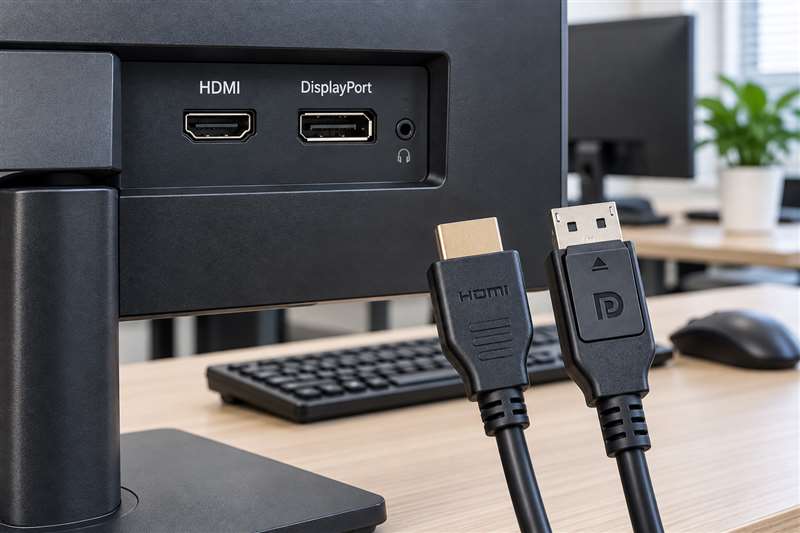
Before choosing a cable, identify the output port on the source device and the input port on the display. The source may be a desktop PC, laptop dock, industrial computer, PLC-related display system, KVM switch, digital signage player or server console. The display may be a monitor, projector, television or industrial panel.
Record:
Source device make and model
Display make and model
Available ports on both devices
Required cable length
Intended resolution and refresh requirement
Whether audio is needed through the same cable
Whether the cable passes through a KVM switch, converter or extender
Installation conditions, including cable tray routing or interference exposure
This prevents the common mistake of selecting the preferred cable type without checking the actual hardware ports.
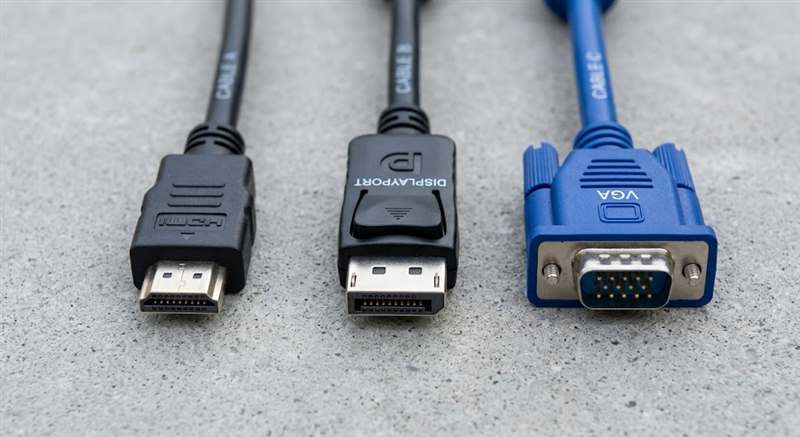
Illustrative image.
When HDMI Is a Practical Choice
HDMI is widely used for office monitors, televisions, projectors, meeting-room screens and digital signage. It is commonly chosen where a single cable is needed to carry video and, in many applications, audio.
For business procurement, HDMI can be a practical option when:
The source and display both have HDMI ports
The cable is used for standard office or meeting-room displays
Audio needs to travel with video
The installation uses common commercial display equipment
Existing infrastructure already uses HDMI switching or distribution
However, HDMI cable selection should still account for distance and signal path. Long runs, adapters, splitters and extenders can affect performance. If an installation requires a longer cable route, confirm the proposed solution rather than assuming any standard cable will work reliably at that distance.
For industrial use, check whether the cable will be subject to vibration, frequent movement or routing near electrical equipment. A cable appropriate for a boardroom may not be the right choice inside a machine enclosure.
When DisplayPort Is the Better Fit
DisplayPort is commonly found on business desktops, workstations, docking stations and professional monitors. It is often preferred where high-resolution computer displays, multi-monitor arrangements or modern workstation environments are involved.
DisplayPort may be suitable for:
Office desktops with DisplayPort outputs
Multi-monitor workstations
Engineering and design environments
IT administration consoles
Modern monitors with DisplayPort inputs
Docking stations used with business laptops
A key procurement point is connector direction. A simple DisplayPort-to-HDMI cable may be designed for one direction only. It should not be assumed that the same cable works in reverse from HDMI output to DisplayPort input. Where ports differ, determine whether a passive cable, active converter or dedicated adapter is required.
This distinction is important for helpdesk teams because incorrect cable direction is a frequent cause of “no signal” incidents after equipment refreshes.
Illustrative image.
Why VGA Still Matters in Legacy Environments
VGA is an analogue display connection that remains common in older office equipment, industrial PCs, legacy monitors, projectors and some server or control systems. It may not offer the same image quality or modern capability as digital interfaces, but it remains operationally relevant.
VGA is often encountered in:
Older production-line computers
Legacy KVM installations
Existing projectors
Industrial control panels
Older server console ports
Equipment awaiting phased replacement
When VGA is required, confirm the connector type and screw-lock arrangement. Cable quality, length and routing can influence image clarity, especially in electrically noisy industrial environments.
If a newer display lacks VGA input, a suitable conversion solution may be needed. Not all adapters behave the same way, so the source device, display device and desired signal direction should be confirmed before purchase.
Consider Cable Length and Signal Path
Cable length is more than a convenience detail. It can influence signal quality and determine whether an active extender, converter or other solution is required.
For each installation, consider:
Actual route length, not straight-line distance
Extra allowance for cable management
Number of adapters or intermediate devices
Need for wall plates, KVM switches or extenders
Access for future replacement
Whether the cable is fixed or frequently moved
Avoid excessive cable slack in industrial panels and avoid forcing connectors under tension. Both can create avoidable maintenance issues.
Industrial Versus Office Cable Requirements
An office desk installation generally prioritises neat routing and connector compatibility. Industrial installations may require more robust planning due to machinery, vibration, electrical noise, heat, dust or restricted access.
Before ordering for an industrial application, consult the maintenance or engineering team regarding:
Cable routing near power circuits or motors
Required shielding or construction
Bend radius and movement
Panel access
Connector retention
Replacement frequency
Where display cabling is part of a critical process or control-room environment, standardising cable types and maintaining labelled spares can shorten recovery time.
Avoid Common Procurement Errors
Common mistakes include ordering a cable without checking port type, using the wrong adapter direction, overlooking cable length and assuming legacy VGA equipment will connect directly to newer digital displays.
A better process is to capture photographs of both ports, note the equipment models and explain how the devices will be connected. This gives a supplier enough context to recommend a suitable cable or accessory without relying on guesswork.
Frequently Asked Questions
Is HDMI better than DisplayPort for office monitors?
Neither is universally better. HDMI is widely used and convenient for many office and meeting-room applications, while DisplayPort is common on business PCs, docks and multi-monitor setups. Choose based on the available ports and required display setup.
Can I connect VGA equipment to a modern HDMI monitor?
Possibly, but it may require an appropriate signal converter. Confirm the source output, display input and conversion direction before purchasing.
Does a longer HDMI or DisplayPort cable always work the same as a short cable?
Not necessarily. Signal reliability can be affected by cable length, cable quality, adapters and intermediate equipment. Review longer installations carefully.
USB-C to VGA Requires Video-Capable USB-C
A USB-C connector does not automatically provide video output. The source device must support DisplayPort Alt Mode. For example, the HP N9K76AA USB-C to VGA adapter converts a compatible USB-C video output to VGA for a monitor, projector or television.
Before selecting this type of adapter, verify DisplayPort Alt Mode support on the source device, the VGA input on the display and the required resolution. An adapter cannot add video capability to a USB-C port that does not support video output.
Request a display cable quotation Send the source and display device models, the ports at both ends, resolution/refresh requirement where known, required cable length, quantity and delivery location in Malaysia. NJ Bravo can then assess available sourcing options against the information provided.
Quick Summary This guide helps buyers identify the PLC, HMI and connection details needed before ordering an industrial cable. It reduces delays caused by visually similar but incompatible connectors or pinouts.
Published 5 September 2026 · Last technically reviewed 11 September 2026 by the NJ Bravo technical sourcing team. This guide is part of the NJ Bravo Buying Guides collection. The team helps Malaysian buyers identify and source PLC and industrial automation parts, including items sourced to order.
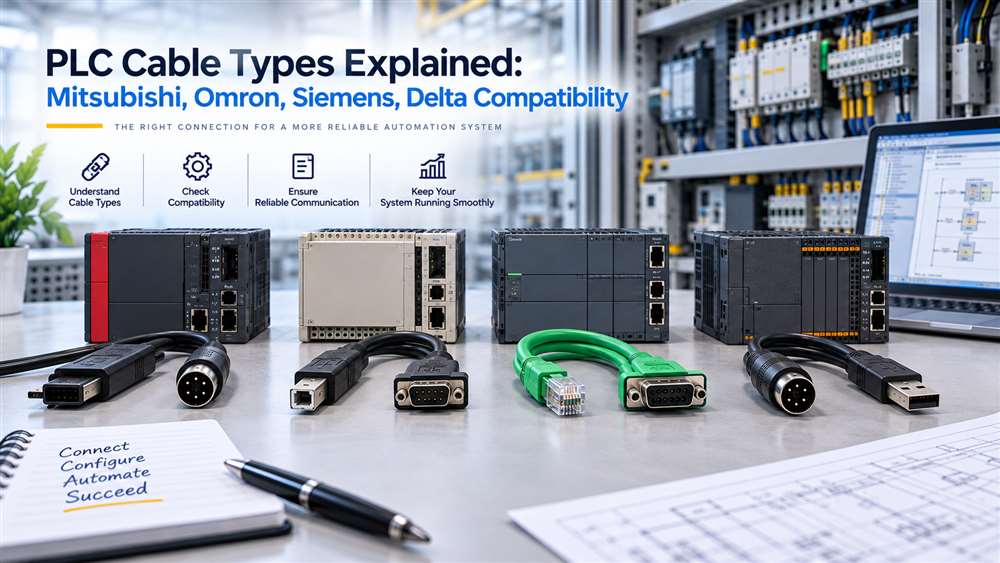
PLC programming and communication cables are small components with a significant impact on industrial maintenance. This guide helps Malaysian procurement teams identify the information needed before ordering cables for automation equipment.
A cable that appears similar may use a different pinout, communication standard, connector gender or controller-specific interface. Ordering by brand name alone can lead to site delays, failed commissioning work or unnecessary returns. The correct approach is to match the cable to the exact PLC, HMI, programming software environment and intended application.
In practice, this means identifying the exact PLC, HMI or programming-device model rather than relying on the manufacturer name alone. Buyers should confirm the controller family, full model number, PLC-side port type, connection purpose and the required computer-side interface before requesting a quote. Mitsubishi, Omron, Siemens and Delta each produce multiple controller families that use different connection methods, so the same brand name does not by itself indicate which cable is required.
What to Identify Before Requesting a PLC Cable
Before requesting a quotation, gather the following details. Supplying this information allows a proper compatibility assessment; it does not by itself confirm that a matching cable is available or compatible.
PLC, HMI or controller manufacturer.
Full equipment model number.
CPU or controller series/family.
Existing cable part number, if available.
PLC-side port type.
Computer-side port type, such as USB or serial.
Purpose: programming, communication, HMI connection or another defined use.
Required cable length, only where relevant.
Operating-system and programming-software version, where compatibility depends on them.
Clear photographs of the equipment label and connection ports.
Quantity and delivery location in Malaysia.
Important: Identify both connected devices and the purpose of the connection before choosing a PLC cable.
Identify the PLC Cable Connection Type First
The term “PLC cable” can refer to several different products. Before sourcing, clarify whether the requirement is for:
PLC programming
PLC-to-HMI communication
PLC-to-PC connection
PLC-to-inverter or servo communication
Network communication
Extension or replacement cabling
Legacy equipment maintenance
The cable required for programming a controller may not be the same cable used for routine communications between a PLC and an HMI. Likewise, cables used with Mitsubishi, Omron, Siemens and Delta systems often vary by controller family and equipment generation.
Start by identifying the exact model number of each connected device.
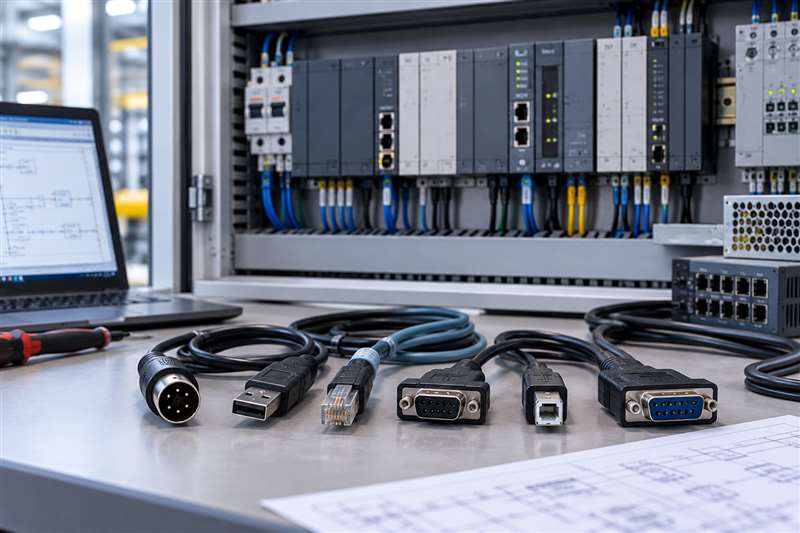
Illustrative image.
Common PLC Cable Categories
Programming Cables
Programming cables connect a PLC or related automation device to a computer or programming interface. Depending on the equipment generation, these may use serial connections, USB interfaces, Ethernet connections or manufacturer-specific connector arrangements.
Legacy controllers often require specialised programming cables that are no longer commonly held as standard stock. This is especially relevant when supporting installed equipment that has remained in service for many years. Where the original cable itself is discontinued, our guide to sourcing discontinued or hard-to-find IT and industrial parts outlines a practical identification process.
For a programming cable request, provide:
PLC brand and exact model
Computer connection required, such as USB or serial
PLC-side connector type
Existing cable part number, if available
Programming software or application context, where known
HMI and PLC Communication Cables
Communication cables connect PLCs with HMIs, operator panels or display equipment. Compatibility depends on both ends of the connection, not only the PLC.
For example, an HMI cable selected for a Mitsubishi controller may differ from one used with an Omron, Siemens or Delta PLC. Even within one manufacturer’s range, older and newer HMI families may have different ports and communication requirements.
Confirm both the PLC model and HMI model. Include the required cable length and installation environment if the cable runs through a control panel, machinery enclosure or cable tray.
Industrial Network Cables
Some automation systems use Ethernet-based, serial or fieldbus-style communication networks. The correct cable selection may involve considerations beyond the connector, including shielding, termination, network topology and environmental exposure.
Where network communication is involved, identify:
Protocol or network type, if known
Equipment at each end
Connector types
Whether the cable is for fixed installation or temporary service use
Required length
Exposure to electrical noise, movement, oil, heat or vibration
Do not substitute a general office cable for an industrial network application without confirming the system and environment requirements.
Illustrative image.
Compatibility Considerations by Brand
Mitsubishi, Omron, Siemens and Delta each supply multiple PLC and automation product families. A cable compatible with one series may not work with another series from the same manufacturer.
For example, a programming cable for a Mitsubishi PLC should be selected by the controller family and port type rather than simply as a “Mitsubishi cable”. The same principle applies to Omron, Siemens and Delta equipment.
In practice, the most useful information for suppliers is:
Brand and full product code
Controller or HMI series
Port labels visible on the equipment
Existing cable reference
Photos of the ports and cable ends
Purpose of the connection
Photographs are particularly valuable for older panels, where equipment documentation may be incomplete or the original cable may have been modified over time.
Manufacturer Identification Comparison
The table below summarises what to identify for each manufacturer. It is an identification reference, not a compatibility matrix — the exact model and connection details must still be confirmed for each request.
Manufacturer
Information buyer must identify
Variables that may affect cable selection
What to photograph
Mitsubishi
PLC family and full CPU/model reference
Controller generation, PLC port and computer interface
Model label and PLC port
Omron
Controller family and full model reference
Peripheral/USB/serial/network connection and intended task
Model label and connection port
Siemens
SIMATIC family, CPU reference and engineering interface
Controller generation, interface and engineering environment
CPU label and interface
Delta
PLC/HMI family and full model reference
Device port, cable interface and programming purpose
Model label and port
Connector and Pinout Differences Matter
Industrial cables can have similar external connectors but different internal wiring. A cable with the correct plug shape may still fail because its pinout or signal conversion does not match the equipment.
Potential differences include:
Male or female connector orientation
Number of pins
Straight-through or crossed wiring
Serial interface arrangement
USB conversion electronics
Shielding arrangement
Proprietary communication layouts
Avoid relying on visual comparison alone. When a cable is being sourced as a replacement, compare the complete reference where possible. If no part number exists, collect photos of both cable ends and all connected devices.
Cable Length and Installation Conditions
Cable length should be specified as part of the purchase request. A programming cable for field maintenance may need a practical length for access to a panel, while a permanently installed communication cable may require routing through conduits or cable trays.
For industrial environments, also consider:
Electrical interference from motors or drives
Bending and movement
Temperature
Oil, dust or moisture exposure
Routing alongside power cables
Panel-entry and strain-relief requirements
The appropriate cable construction depends on the specific installation. Procurement should involve maintenance, automation and engineering personnel where the cable will be used in a production environment.
A Practical Sourcing Process
When a PLC cable is lost, damaged or unavailable, avoid ordering on a generic description. Instead, prepare a short requirement sheet with device models, port photographs, cable purpose and desired length.
For discontinued equipment, the original cable may be hard to locate. In these cases, accurate identification becomes even more important. A B2B source-to-order supplier can help assess options, but the final selection should be based on confirmed equipment details.
Frequently Asked Questions
Can one PLC programming cable work across all Mitsubishi or Siemens models?
No. Compatibility commonly differs between PLC series, generations and port types. Confirm the exact controller model and programming interface.
What if the original PLC cable part number is missing?
Provide clear photos of both equipment ports, the PLC model label, any remaining cable markings and a description of the intended connection.
Are standard USB cables suitable for PLC programming?
Only where the PLC or programming interface is designed to use that USB connection. Many systems require specific cables, adapters or communication interfaces.
Primary Sources
The general identification guidance above is supported by official manufacturer documentation. NJ Bravo does not claim to be an authorised distributor or partner of these manufacturers.
Mitsubishi Electric — FX Communication User Manual (RS-232C, RS-485, RS-422), FX series: confirms Mitsubishi FX-series controllers use multiple distinct communication interface standards depending on the module and application. Accessed 11 September 2026.
Omron — USB-Serial Conversion Cable CS1W-CIF31 User Manual, CS/CJ/CP/C/CVM1/CV series: confirms Omron specifies a dedicated conversion cable for these particular PLC families rather than a universal cable. Accessed 11 September 2026.
Siemens — PC Adapter USB A2 Operating Instructions, SIMATIC S7 (MPI/PROFIBUS): confirms SIMATIC controllers using MPI/PROFIBUS communication require this specific Siemens PC Adapter rather than a generic USB-to-serial cable. Accessed 11 September 2026.
Delta Electronics — DVP Series PLC Technical Profile, DVP series: documents the DVP-series PLC family and its associated programming and communication accessories as a defined product ecosystem. Accessed 11 September 2026.
Verified PLC Programming and Communication Cable Examples
These examples show why the exact controller, connection purpose and connector arrangement must be checked. Programming cables and HMI-to-PLC communication cables are not interchangeable.
Request a PLC cable quotation Send the PLC or HMI brand, full model number, port photographs, required connection purpose, quantity and delivery location in Malaysia. NJ Bravo can then assess available sourcing options against the information provided.